Appearance
Plus layers
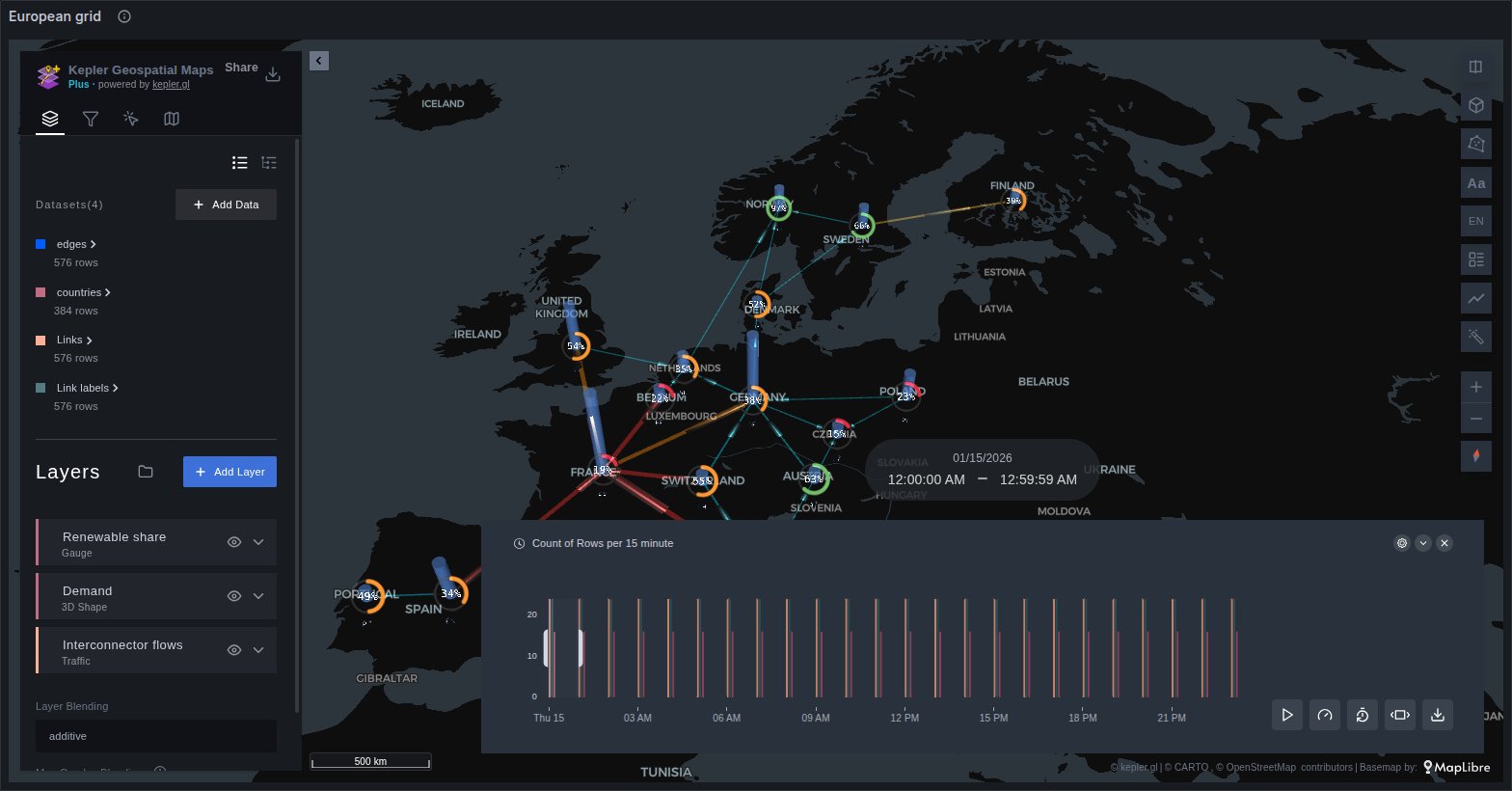
Plus adds eight layer types to kepler's layer list. Each one is a kepler layer like any other: you pick it as the layer type, style it in kepler's layer panel, and it is saved with the map. Most of them you add yourself, with Add Layer or by switching the type of a layer the panel already built; each layer page says when the panel adds one for you.
| Layer | Draws | Reads |
|---|---|---|
| Gauge | A ring or a marker filled to a value, at each point | Points |
| 3D Shape | A box, cylinder or prism whose height and colour are metrics | Points |
| Coverage and Coverage 3D | Sectors from an azimuth, a beamwidth and a range; domes in 3D | Points, one row per sector |
| Surface | Coloured bands and isolines between points, or a density count | Points |
| Sparkline | A card with each station's series and its current value | Points, many rows per station |
| Traffic | Link lines with comets running along them | Links, from a source to a target |
| Pipeline | The same flow along a real route | Line geometry |
| Fleet | Each vehicle or device once, where it is now, with a trail | Positions with an asset column |
Points can come from latitude and longitude columns, or from a name that Places turns into coordinates: a cloud region, an airport code, a country, a province.
What they share
One mark per place
A query that returns a time series for each site would pile marks on the same spot. Gauge, 3D Shape and Coverage have a Per place setting that keeps one row for each place: Last (the default), Min or Max, or All to draw every row. With an Asset column, a place is that asset rather than a pair of coordinates, so a moving asset keeps one mark and glides between its reports. Each layer page says which column Min and Max read.
The time filter and kepler's filters
The Plus layers follow kepler's filters and its time filter as kepler's own layers do, so pressing play replays them with the rest of the map. See Time playback and Filters.
History in the popup
Gauge, 3D Shape, Coverage, Traffic and Pipeline have a History setting in their Interaction group. Hovering a mark then shows its readings over the dashboard's time range under kepler's own fields, and a click pins the popup with a larger chart. The chart draws the colour field by default, any other numeric field, or nothing (Off).
Clicks and drawn polygons
A click on a Plus layer reaches the panel's click variables and is ringed on the map, as on kepler's layers. See Cross-filtering.
kepler's draw tool offers Gauge, 3D Shape, Coverage, Surface, Sparkline and Fleet next to its own layer types, and a polygon drawn with it filters them. Fleet filters per asset: an asset that is inside the polygon now keeps its whole trail.
Cards on top
Sparkline and Fleet cards are drawn above every layer, the map's labels included, so the data they describe never hides them.
The layer tour
The app installs one dashboard, the layer tour, with a map for each group of these layers on synthetic data. Each layer page says which map shows it. See Template dashboard.