
Appearance
Surface
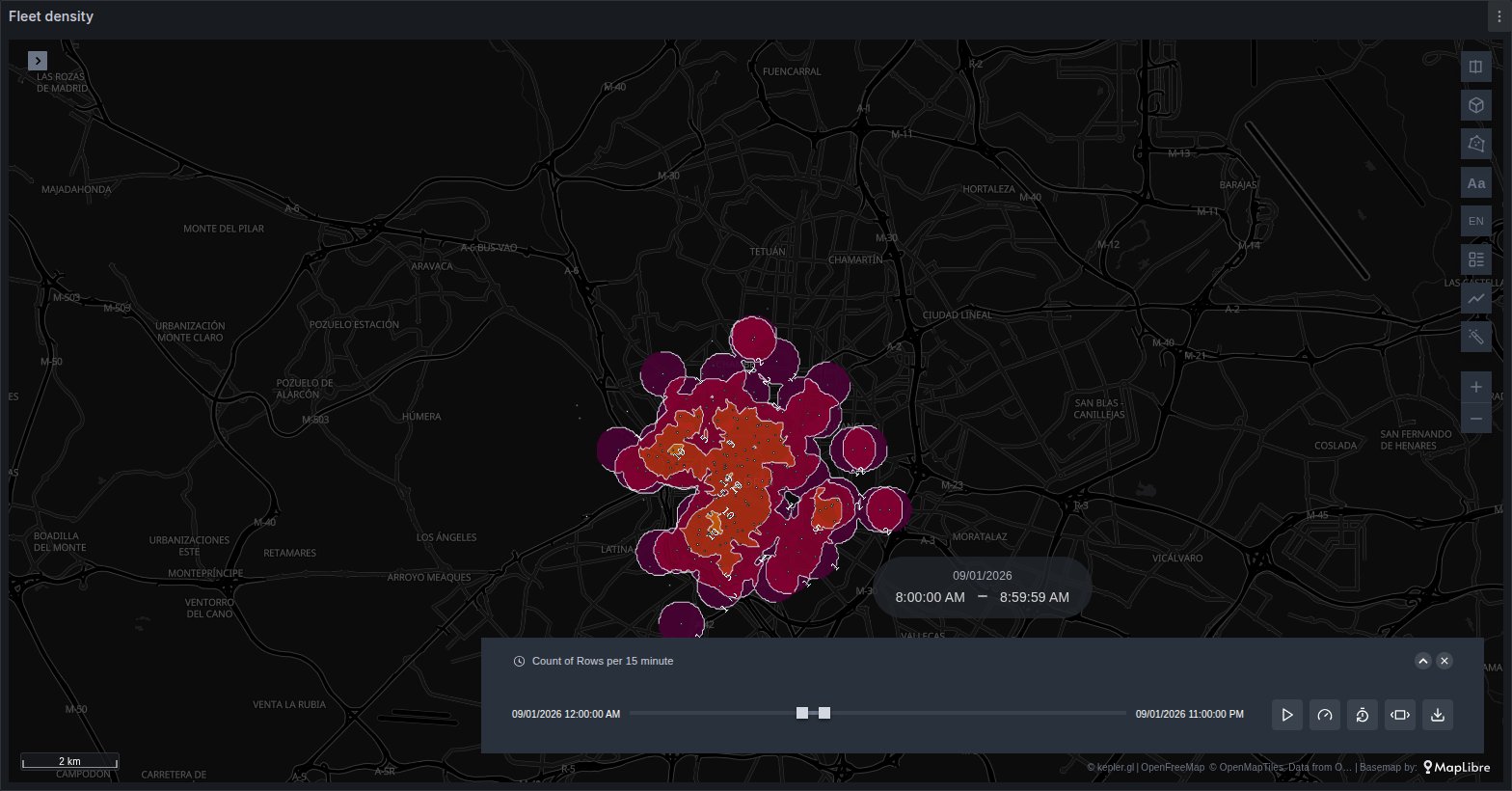
A continuous surface of coloured bands and isolines drawn from points: either a value estimated between sensors (Interpolate) or how many vehicles are within a distance of each place (Count).
See it in the layer tour
The Weather map of the layer tour, installed with the app, estimates temperature between 40 weather stations around Madrid, in Interpolate mode, with the stations drawn as dots on top. It reads synthetic data from the TestData data source. Press play on the time filter to watch the surface change, then replace the query with your own. Grafana may replace the tour when the app is updated, so copy it before customising it.
What the query needs
| Mode | Columns |
|---|---|
| Interpolate | latitude, longitude and a number; one row per reading |
| Count | latitude, longitude and, ideally, a vehicle id; one row per position |
A time column is what lets the time filter play either mode.
sql
SELECT time, station, latitude, longitude, temperature
FROM readings;
The panel never creates a Surface layer on its own: add a layer in the kepler side panel, pick Surface as its type and set its latitude and longitude columns. Rows further north or south than 85° are left out.
Interpolate
Pick the number under Color: it is the value estimated between sensors. The layer's note says Values between sensors are estimated (inverse distance weighting): each place on the surface takes a weighted average of the sensors around it, the closer ones weighing more. A place on a sensor takes that sensor's value. The estimate is a guide, not a measurement — keep the sensors visible as a point layer on top, as the layer tour does, so readers can tell the two apart.
A sensor is a place: rows with exactly the same coordinates belong to one sensor, so a station reporting every minute still counts once, and no id column is needed. Only the rows that kepler's filters keep are used, so with a time filter each sensor gives its reading inside the window.
The bands are the colour scale
The bands follow the layer's colour palette and scale: each step of the scale is one band, and each boundary between steps is an isoline. A quantize scale gives equal steps; a custom scale gives exact breaks of your choosing. A scale without numeric steps draws nothing, and the layer says so. See Colour palettes and scales.
Options
| Option | What it does | Default |
|---|---|---|
| Mode | Interpolate or Count | Interpolate |
| Per sensor | Which of a sensor's readings it gives: Last, Mean, Min or Max | Last |
| Bands | Fills the space between isolines with the band colours | on |
| Isolines | Draws a line at each break | on |
| Isoline colour | The lines' colour; until one is picked it follows the Grafana theme | theme |
| Isoline width | 0.5 to 4 | 1 |
| Isoline labels | Writes the break's value along each isoline | on |
| Label size | 8 to 24 | 11 |
| Resolution | Low, Medium or High: how finely the surface is sampled | Medium |
| Power | 1 to 5. Higher lets each sensor dominate its surroundings; lower smooths the surface | 2 |
| Neighbours | How many of the closest sensors each place weighs: Auto (12), 8, 16, 32 or All | Auto (12) |
| Max distance (m) | Leaves out places further than this from every sensor; empty is no limit | No limit |
| Fade edge | Shown with a max distance: the last third before it fades out instead of ending in a hard edge | on |
| Area | Sensors hull (the shape the outer sensors enclose) or Rectangle (their bounding box) | Sensors hull |
| Margin (%) | Draws past the outer sensors by this share of their extent, 0 to 50 | 0 |
| Under 3D buildings | Draws the surface inside the base map, under its 3D buildings, so they stand in front of it; off, it is drawn over them like every other layer | on |
| Follow 3D tiles | With a 3D tileset on the map, lays the surface over the ground of its tiles; off, it stays flat | on |
| Altitude (m) | Metres above the ground the surface is drawn at, up to 10,000; empty is the ground | On the ground |
Last is the newest reading, because Grafana returns rows in time order. Mean, Min and Max summarise every reading of the sensor among the rows the filters keep.
Under the buildings
The panel draws its layers above the base map, so on a tilted map a surface on the ground would cover every building the base map draws, as if it floated over the city. With Under 3D buildings on, the surface is drawn inside the base map instead, right under its 3D buildings: a building stands in front of the bands, the roads stay under them and the base map's labels above. Hovering still shows the estimate under the cursor.
It takes a base map that draws its own 3D buildings (OpenFreeMap Liberty, or a self-hosted style) and applies once the map is zoomed in enough for them to appear. The surface stays over the buildings where the map cannot draw it underneath: a base map without 3D buildings, a Mapbox base map, the globe, and Relief, whose terrain would bury it. Lifted with Altitude, every building is drawn in front of it. The other layers, the stations for instance, are still drawn over the buildings.
On the ground of 3D tiles
A 3D tileset (Google Photorealistic 3D Tiles) carries the real relief: the panel lowers it as a whole so the ground under the view sits at sea level, and a flat surface is buried where the land rises and floats where it falls. With Follow 3D tiles on, the surface is laid over the ground the tiles' meshes tell, two metres above it, and its isolines and labels follow: streets, parks and water are covered, and buildings stand through it. The ground is read from the tiles loaded for the view, so the surface settles as they load and is interpolated between its samples, about a sixtieth of its width apart; in a narrow street between towers it can still be hidden. Off, or with no tileset on the map, the surface stays flat.
Without a max distance the surface covers the whole area, even far from any sensor, where the estimate is little more than an average of distant stations. Setting one is the honest choice when sensors are sparse or unevenly spread.
Hovering the surface shows the Estimated value under the cursor and its Band.
Count
Count draws how many vehicles are within a radius of each place. The layer's note says Vehicles within the radius, counting each vehicle's last position once: among the rows kepler's filters keep, each vehicle is taken at its newest position, so a vehicle reporting every few seconds still counts as one. Nothing under one vehicle is painted.
In Count mode the Color group keeps only the palette and the opacity: there is no column to pick, and the palette's colours become the bands.
Which column names a vehicle
Vehicle is set to Auto, which shows the column it found in brackets. Auto takes the first column named, case aside:
trip_id, tripid, track_id, trackid, trajectory_id, vehicle_id, journey_id, asset_id, asset, device_id, device, imei, mmsi, icao24, callsign, unit_id
Any text or integer column can be picked by hand instead. None (each position) counts each distinct position as one vehicle, which is also what happens when Auto finds nothing — the layer notes it. Without an id, a vehicle that moved within the window counts once for every place it reported from.
Options
| Option | What it does | Default |
|---|---|---|
| Vehicle | The column that names each vehicle: Auto, None (each position) or a column | Auto |
| Radius (m) | The distance counted around each place, in metres on the ground, 10 to 50,000 | 500 |
| Breaks | The band boundaries, such as 2, 5, 10, 20, 40; empty is Automatic | Automatic |
| Bands, Isolines, Isoline colour, Isoline width, Isoline labels, Label size, Under 3D buildings, Follow 3D tiles, Altitude | As in Interpolate | as above |
| Resolution | Low, Medium or High | Medium |
| Area | Sensors hull or Rectangle, around the vehicles and their radius | Sensors hull |
| Margin (%) | 0 to 50 | 0 |
A radius outside 10 to 50,000 goes back to 500. The area always includes each vehicle's radius, so a single vehicle still draws a disc.
Hovering shows Vehicles (for example ≈ 7 within 500 m) and the Band.
Fixed breaks for comparing frames
When the time filter plays, the surface is redrawn for each window. Two frames can only be compared if the breaks stay put.
- Count: with Breaks empty, the breaks follow the busiest zone of the current frame and change as time moves; the layer warns of this. Type fixed breaks to compare frames. They are positive numbers separated by commas, semicolons or spaces, sorted and deduplicated when you leave the box; if the first is above 1, a break at 1 is added below it. The palette's colours are spread evenly over the bands. For vehicles within 500 m,
2, 5, 10, 20, 40reads well. - Interpolate: the breaks are the colour scale's. A custom scale gives exact breaks that never move.
When it does not draw
The Surface section shows a note explaining why:
| Note | What to do |
|---|---|
| Pick a number under Color | Interpolate needs a numeric column to estimate |
| Needs at least 3 sensors at different places, not all in a line | Widen the time window or the query; a line of sensors encloses no area |
| This colour scale has no numeric steps | Pick quantize, quantile or custom |
| Bands and isolines are both off | Turn one of them on |
| No vehicle positions in the shown rows | Count found nothing inside the filters |
Limits
- Resolution. Low, Medium and High sample the surface 100, 200 and 300 times along its long side. Bands look stepped when zoomed in far past the area they cover.
- Resolution lowered automatically. With many sensors, or many vehicles and a large radius, the layer steps down from High to Medium to Low to keep the map responsive, and says Resolution lowered to keep the map responsive with this many sensors. In Interpolate, fewer neighbours lets a higher resolution stay.
- Caps. Interpolate uses the first 5,000 sensors and Count the first 50,000 vehicles; the layer says so when it leaves the rest out.
- Its own per-sensor choice. Surface has Per sensor instead of the Per place setting shared by the other Plus layers, and no history chart in the popup.
Use it for
Temperature, air quality or noise between stations; soil moisture; signal strength from drive tests; vehicle or crowd density; demand hot spots.