Appearance
Sparkline
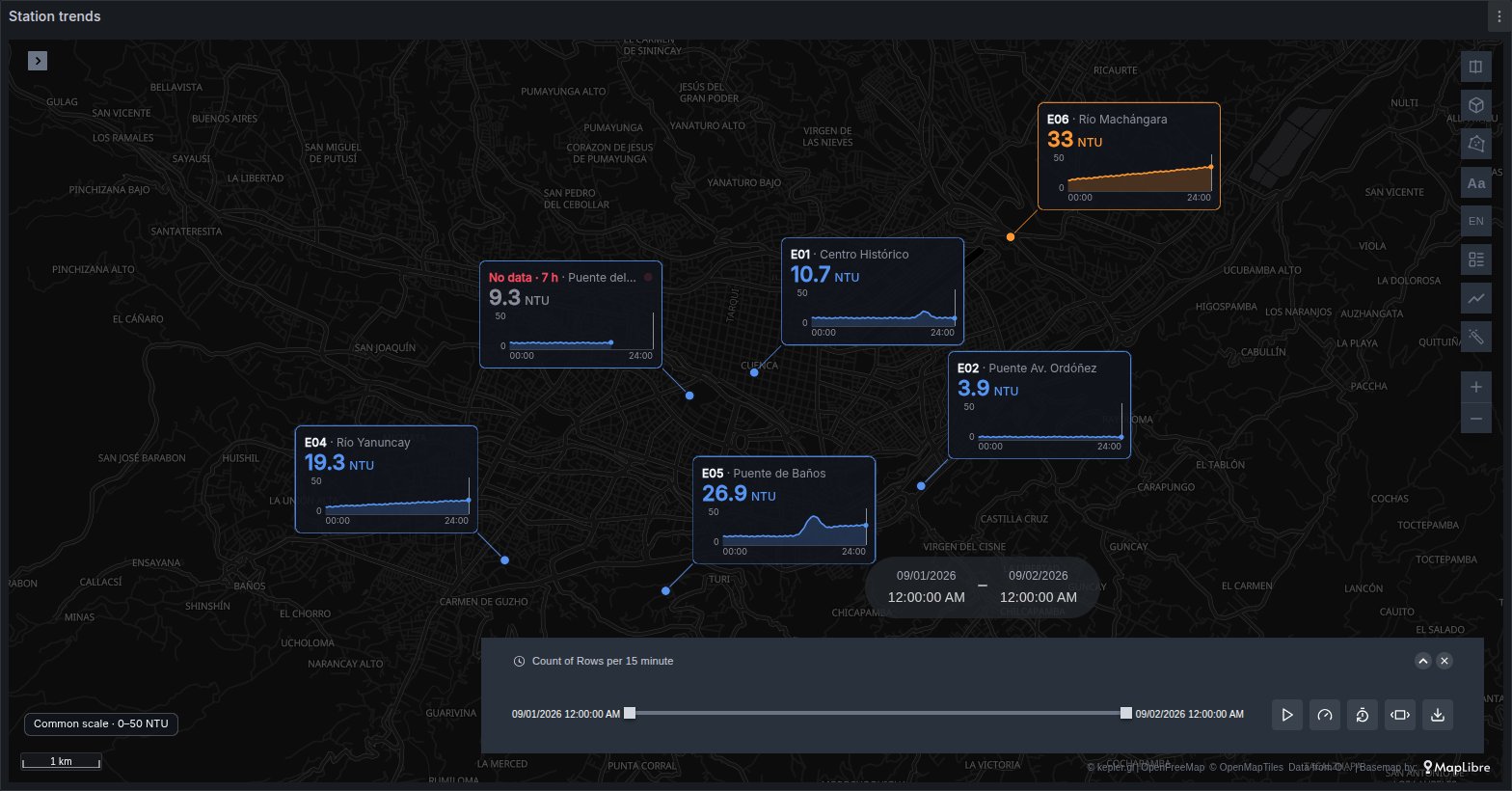
A card over each station with its series across the dashboard's time range, its current value in its band's colour, and its name. For places where the trend matters as much as the place: river gauges, weather stations, meters, the endpoints of each region.
See it in the layer tour
The Rivers map of the layer tour is a complete example: six river stations, a fixed day of turbidity readings every 15 minutes, a map with one Sparkline layer and a Time series of the same stations under it. One station stops reporting at 17:00, so its card goes into alert later that afternoon.
Open it, press play on the time filter and hover the graph under the map: everything this page describes is on screen.
What the query needs
One row per reading, in a long table:
| Column | What it is for |
|---|---|
| latitude, longitude | Where the station is. All of a station's rows share its coordinates. |
| a time | When the reading was taken. Without one, there is no chart. |
| a number | The reading. It is the layer's colour field, see below. |
| a name (text) | Shown on the card. |
| an id (text), optional | Shown before the name, as in E01 · Centro Histórico. |
The layer tour's data has exactly these columns. From SQL it would be:
sql
SELECT s.name,
       s.code      AS station,
       r.time,
       r.ntu,
       s.latitude,
       s.longitude
FROM readings r
JOIN stations s ON s.id = r.station_id
WHERE $__timeFilter(r.time)
ORDER BY r.time;
Rows are grouped into one series per place by their coordinates, so each station is one card however the rows are ordered. The card's name is the Name field, which defaults to the first text column; the first other text column becomes the id.
If an Asset column is set (or found under Auto) and an asset reports from more than one position, it is treated as moving: its card follows it across the map instead of staying at one coordinate. Set Asset to None (by position) to always group by coordinates.
Adding the layer
The panel never creates a Sparkline layer by itself. In kepler's layer panel, add a layer, pick Sparkline as its type, and set its latitude and longitude columns.
Then set the layer's colour to the reading's column. The colour field is what the card charts and shows as its value: a layer without one draws cards with no value and no line. The colour range is also where the bands come from. The layer tour uses a custom range with breaks at 30 and 40 NTU: blue below 30, amber up to 40, red above. Each colour in the range is a band, and the last one is the worst. Grafana's thresholds do not reach the map; set the bands in the layer's colour range (see Colour palettes and scales).
The card
- Header: the id and the name, cut with an ellipsis when they do not fit.
- Value: the current reading, large, in its band's colour, followed by the Unit.
- Chart: the series over the dashboard's time range, with its minimum and maximum on the left and the start and end times underneath. The current reading is a dot on the line.
The current reading is the last one at the time filter's cursor. Press play and the cursor walks across every card: the line after it is dimmed, and the value and colour are those at the cursor. Without a time filter, it is the newest reading. See Time playback.
With Scale at Common, every card shares one vertical scale, so a high line means a high value on every card, and a note at the bottom left of the map gives that range. Per site scales each card to its own readings, which shows the shape of each series at the cost of comparing them.
Where the cards go
Cards are placed the way a map places its labels: worst band first and, within a band, the highest value first. Each card tries the four corners around its dot and takes the first that covers no other card or dot and stays inside the map. A card that does not fit stays a dot and shows its card while the pointer is on it. Cards keep clear of kepler's side panel when it is open.
Overlap relaxes that: Some lets a card cover up to 30% of another, and Allow places one for every station on the map. At most 60 cards are placed at once, not counting cards in alert or pinned ones.
Cards on hover, and pins
With Cards set to On hover, no card shows by itself, not even one in alert. Hovering a dot shows its card, which stays for a moment after the pointer leaves so it can reach the card. The card has a pin in its header: click it and the card stays. Pins are saved with the map, so save the dashboard to keep them. Click the pin again to drop it.
Options
Under Sparkline in the layer's settings, below kepler's colour group.
| Option | What it does | Default |
|---|---|---|
| Name field | The text column shown as the card's name. | first text column |
| Time field | The time column the chart runs along. | Auto (first time field) |
| Scale | Common to all cards, or Per site. | Common |
| Asset | The column that names a moving asset; None (by position) groups by coordinates only. | Auto |
| Minimum, Maximum | Fix the chart's vertical range. Empty means from the data. | auto |
| Unit | Text after the value, kept as typed: a leading space separates it from the number ( NTU). | empty |
| Card size | Small, Medium or Large. | Medium |
| Cards | Auto places cards by itself; On hover shows only hovered and pinned cards. | Auto |
| Overlap | How much cards may cover each other: Don't allow, Some, Allow. | Don't allow |
| Show dots | Off makes the dots see-through, for a map whose other layer already draws the stations. Hovering and pinning still work. | on |
| Dot radius | The dot's size, 2 to 20 pixels. | 5 |
| Dots over roads and labels | Keeps the dots over the base map groups moved to the top of the map (roads, labels), as the cards always are; off, the dots keep their place in the layer order. | on |
| Fill under the line | Shades the area under the series. | on |
| Card opacity | The card's background only; the text and the chart stay opaque. | 0.9 |
| Alerts | Turns the alerts below on or off. | on |
| No data after (min) | Minutes without a reading before a card alerts. Empty means three of the station's own intervals. | auto |
| Worst band too | A station in the colour range's last band also alerts. | off |
| Tooltip | kepler's tooltip on hover. Off, the card still shows. | on |
| Follow shared crosshair | Draws Grafana's shared crosshair on each card's chart. | on |
| Show crosshair value | Beside the value, the reading at the crosshair and the change since. | on |
| Change colour | How the change is coloured: Neutral, Rising is good, Rising is bad. | Neutral |
| Card hover drives graphs | Hovering a card's chart moves the crosshair of the dashboard's graphs. | off |
No data after (min) and Worst band too show only while Alerts is on, and Change colour only while Show crosshair value is on.
No data and alerts
A card goes into alert when its station has sent nothing for too long:
- No data after (min) empty: the limit is three times the station's usual interval between readings (the median gap), and never less than a minute. A station reporting every 15 minutes alerts after 45 minutes of silence. When the interval cannot be worked out, for example from a single reading, the limit is 5 minutes.
- A number: that many minutes, for every station.
"Now" is the time filter's cursor, or the end of the dashboard's range once the cursor reaches the newest reading. In the layer tour, the station that stops at 17:00 alerts from 17:45.
A card in alert for no data shows No data and how long it has been silent in red, in place of the id, and greys its last value. With Worst band too on, a station whose current reading is in the last colour of the range alerts as well; this needs a range of at least two colours.
Either way, a card in alert is always placed while its dot is on the map, drawn over the others, and carries a blinking red button at the right of its header. With Cards set to On hover, it shows only on hover or when pinned.
Without a time field there is no interval to measure, so a card never alerts for no data.
Following the other panels
Hover a Time series on the same dashboard and a dashed line marks that instant on every card's chart. Beside the value, the card shows the reading at that instant, greyed, and the change from it to the current value, such as +3.2 or −1.5. With Change colour set to Rising is good or Rising is bad, the change is green or red accordingly.
The crosshair marks a moment; it does not move anything. The cursor, the value, the band's colour and the alerts stay with the time filter.
For this to work, open the dashboard settings and set Graph tooltip to Shared crosshair or Shared tooltip. Without it, Grafana's graphs do not share their cursor. The same setting is needed the other way: with Card hover drives graphs on, hovering a card's chart moves the crosshair of every graph on the dashboard. The layer tour has both on.
A graph with its own time override can point outside the cards' range; the cards then draw no line. See Temporal cursor for the shared cursor in the free panel.
A graph of the same stations without a second query
The layer tour's Time series uses the -- Dashboard -- data source to read the map panel's query, and a Partition by values transformation on name to split it into one line per station.
When it does not draw
- No layer at all. The panel does not create a Sparkline layer from the data; add one.
- Cards with no value and no line. The layer has no colour field. Colour it by the reading's column.
- Cards with a value but no chart. The data has no time column; the settings say so where Time field would be.
- Only dots. The cards do not fit with Overlap at Don't allow: zoom in, pick a smaller Card size, or allow some overlap. Or Cards is set to On hover.
- One card where you expected several. The stations share coordinates, so they are one place.
- Worst band too never alerts. The colour range has a single colour, or the bands were set in Grafana's thresholds, which the map does not read.
- No crosshair on the cards. Graph tooltip is still at Default, or Follow shared crosshair is off.
Plus layers share more behaviour, such as clicks and drawn polygons: see Plus layers.
Use it for
- Water quality and river levels, one card per gauge.
- Weather stations: temperature, rain, wind over the day.
- Energy meters and substations.
- The latency of each region's endpoints.
- KPIs per store, plant or site, where the trend matters as much as the place.