
Appearance
Gauge
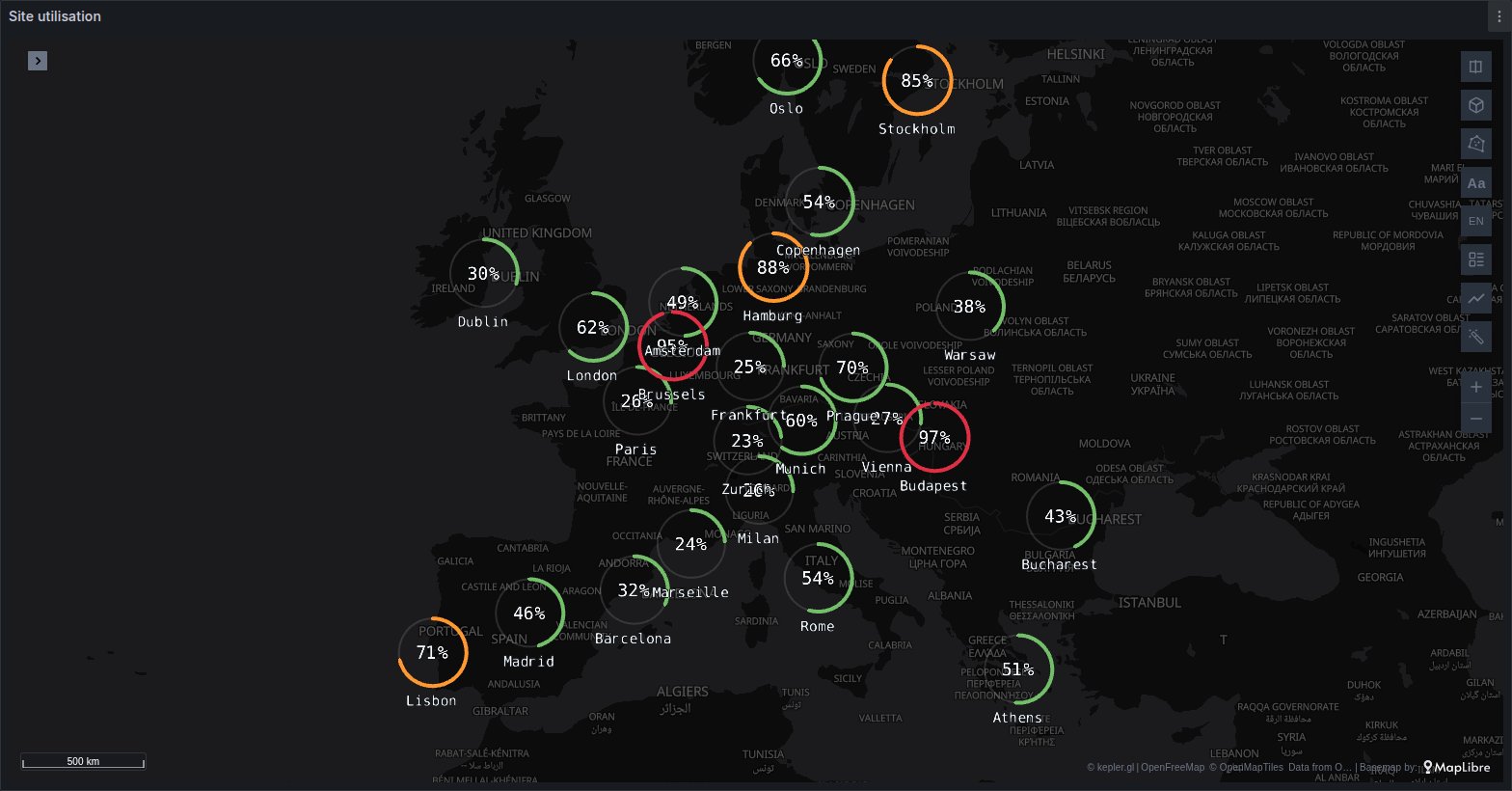
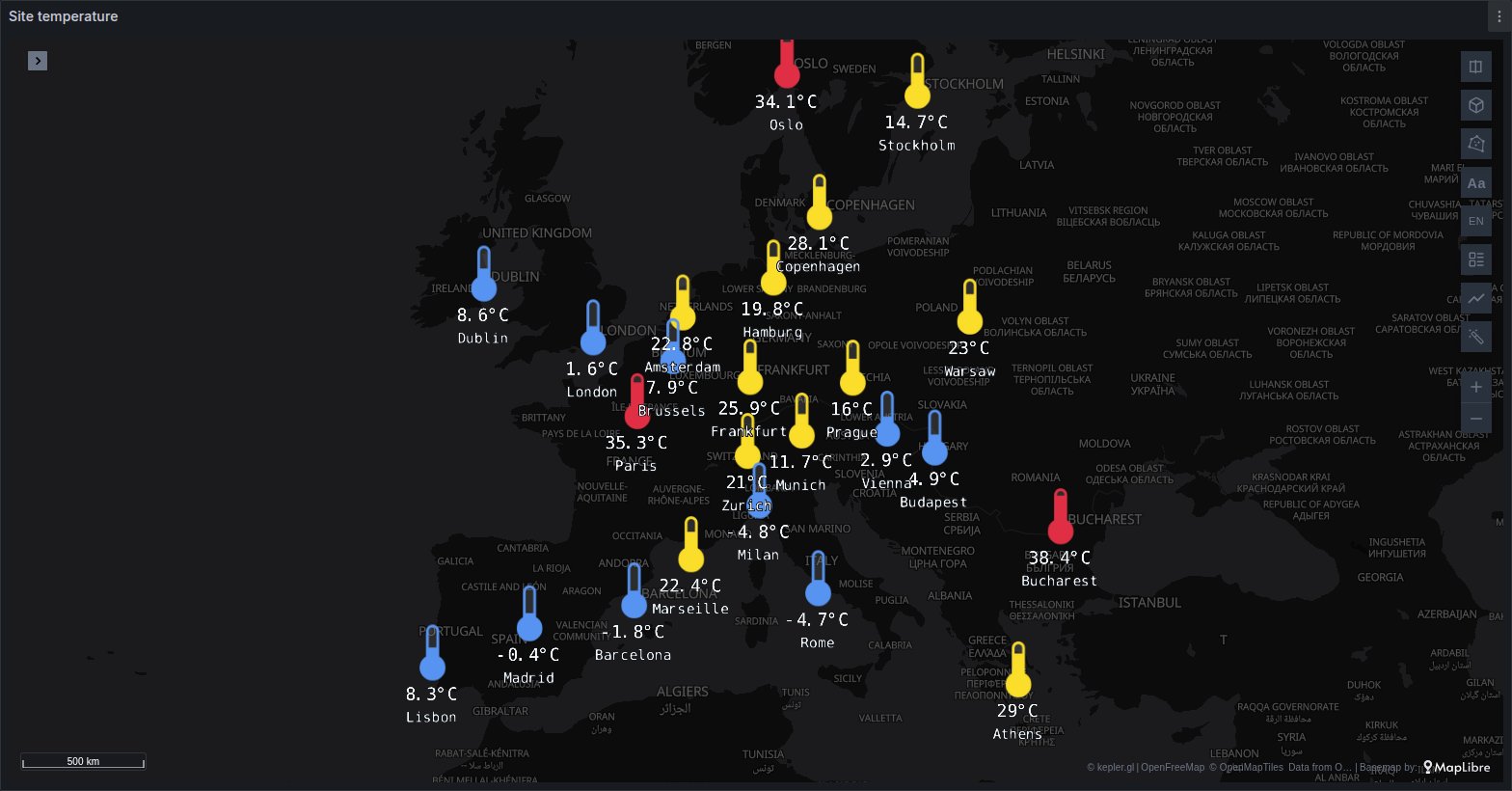
Each point draws as a ring filled to its value's share of a maximum, with the percentage or the value at its centre and the place's name under it. The ring can be swapped for a marker that fills: a thermometer, a tank, a battery, a drop or any icon from the catalogue.
See it in the layer tour
The Power grid map of the layer tour, installed with the app, draws each country's renewable share as a ring filled from 0 to 100, red below 30, amber below 60, green above, with the percentage in the middle. It reads synthetic data, so it draws with no setup; press ▶ on its time filter to play the day. Grafana may replace the dashboard when the app is updated, so copy it before customising it.
What the query needs
A position and one numeric column for the value:
sql
SELECT site        AS name,
       lat         AS latitude,
       lon         AS longitude,
       utilisation
FROM site_status;
The position can also come from a place name instead of coordinates. For sites named by a label, use an instant PromQL query with Format set to Table:
promql
avg by (site) (utilizacion_pct)Places turns the label into place, latitude and longitude columns, and the value arrives in a column called Value. Places detects a label by its name, and site is not one of the names it recognises, so name it as the query's Column in the Places options. Its values then have to be places Places knows: cloud regions, airport or PoP codes, countries. Sites known only by names of your own need latitude and longitude columns in the query instead.
A Gauge layer is never created by itself. Add it in kepler's side panel with + Add Layer, choose Gauge as the type, and assign the latitude and longitude columns. Underneath, it is kepler's point layer, and these point settings carry over:
- Color Based On picks the value column. The fill level, the centre text and the colour all come from it.
- The colour range colours each gauge by that value. A custom scale sets breaks such as 70 and 90; see Colour palettes and scales. Grafana's thresholds do not apply.
- Radius sets the gauge's size in pixels.
- Text label writes a column, such as the place name, under the gauge.
Options
The Gauge group comes after the point layer's own settings. Some rows only appear when another setting needs them.
| Option | What it does | Default |
|---|---|---|
| Shape | Ring, Thermometer, Tank, Battery, Drop or Icon | Ring |
| Icon | The catalogue icon that fills, when Shape is Icon | square |
| Position | Center, or Above, Right, Below or Left of the point | Center |
| Distance | Gap in pixels between the point and the gauge, 0 to 120; shown when Position is not Center | 30 |
| Over roads and labels | Keeps the gauges over the base map groups moved to the top (roads, labels) and over other layers | on |
| Per place | Which rows a place draws: All rows, Last, Min or Max | Last |
| Asset | The column that tells moving things apart: Auto, None (by position), or a column | Auto |
| History | What the popup charts: Off, Color field, or any numeric column | Color field |
| Minimum | The value an empty gauge stands for | 0 |
| Maximum | The value a full gauge stands for; leave it empty for auto | auto |
| Centre shows | Percentage of the range, or the Value itself | Percentage |
| Unit | Text appended to the value, exactly as typed; shown when Centre shows is Value | empty |
| Upright (3D) | Stands the ring up, facing the camera, when the map is tilted; Ring only | off |
| Centre text | Draws the percentage or value | on |
| Centre text colour | Colour of that text | follows the Grafana theme |
| Centre text size | In pixels, 8 to 40 | 18 |
| Ring thickness | Width of the filled arc in pixels, 1 to 30; Ring only | 4 |
| Outline width | Outline of a Thermometer, Tank, Battery or Drop, 1 to 30 | 4 |
| Shrink when zooming out | Makes the gauges smaller as the map zooms out | off |
| Full size from zoom | The zoom at and above which gauges keep their full size, 0 to 22; Use current zoom fills it in | 10 |
| Shrink rate | 0 never shrinks, 1 halves the size per zoom level | 0.5 |
| Background disc | A disc behind the ring; Ring only | off |
| Background colour | Colour of that disc | dark blue-grey |
| Background opacity | 0 to 1 | 0.6 |
Minimum and maximum
The gauge fills to (value − Minimum) / (Maximum − Minimum), held between empty and full. With the maximum on auto, it is 1 when every value is at most 1 and 100 otherwise, so a 0–1 ratio and a 0–100 percentage both read correctly without setting anything. A metric that can exceed 100, or that does not start at 0 like a temperature, needs both numbers set. A maximum at or below the minimum is ignored and read as auto.
Percentage prints the share of the range, rounded to a whole number. Value prints the reading itself, rounded to one decimal, even when it lies outside the range and the gauge is simply empty or full. Type the unit with any space you want before it: °C gives 23.4°C, kW gives 23.4 kW.
Shapes
The tank, the drop and an icon fill from the bottom up, the battery from left to right. The thermometer's bulb is full as soon as the value is above the minimum; its tube carries the reading. Markers always face the camera, so Upright (3D) applies to the ring only. With Centre text on, a marker writes its text below itself rather than inside, and the name label moves down to make room.
The icons are the same catalogue as the free panel's symbols.
Beside the point
With Position set to anything other than Center, the gauge moves Distance pixels away from its point and a thin leader line joins them. The gap is in screen pixels, so it looks the same at every zoom and tilt. Use it when another layer draws something at the same spot, such as a vehicle or a site icon, that the gauge would otherwise cover.
Behaviour worth knowing
- One gauge per place. A query that returns a time series per site would pile gauges on the same spot. Per place keeps one row for each: the newest (Last), or the one with the lowest or highest value (Min, Max). All rows draws every one. A place is its coordinates, or its Asset when the rows belong to something that moves; see Plus layers.
- Time filter. The gauges follow kepler's filters and the time filter: as it plays, each place shows its row in the window. An
automaximum is worked out from every row, not only the visible ones, so it does not jump while the time filter plays. - Moving assets. With Per place on Last and an asset column, a gauge glides between the asset's reported positions as the time filter plays, keeping the value of its last report.
- Clicks and polygons. A click on a gauge reaches the panel's click variables (see Cross-filtering), and a polygon drawn with kepler's draw tool filters the gauges as it does kepler's own layers.
- Hover. The popup shows the row's fields and, under them, the place's history over the dashboard's range. Turning off kepler's Allow hover for the layer turns both off.
When it does not draw
- No layer at all. Unlike kepler's point layer, a Gauge layer is never added automatically. Add it by hand, or copy the layer tour's Power grid map.
- Empty gauges with no text. No Color Based On column is set, or its values are not numbers. A row whose value is empty or not a number draws an empty gauge.
- Every gauge full. The values are above the maximum: an
automaximum is 100 at most, so set Maximum for anything larger. - Every gauge nearly empty. The values sit below Minimum, or a 0–1 ratio has one stray value above 1, which makes
autoread 100. - Sites named by a label do not draw. The query returns no series, or the
sitevalues are not places Places recognises: returnlatitudeandlongitudeinstead. - Gauges missing in one area. A kepler filter, a drawn polygon or the time filter's window leaves those rows out.
Use it for
Site and data centre utilisation, storage and tank levels, battery charge across a fleet of devices, reservoir levels, temperatures at weather or cold-chain sites, renewable share per country.