Appearance
Traffic
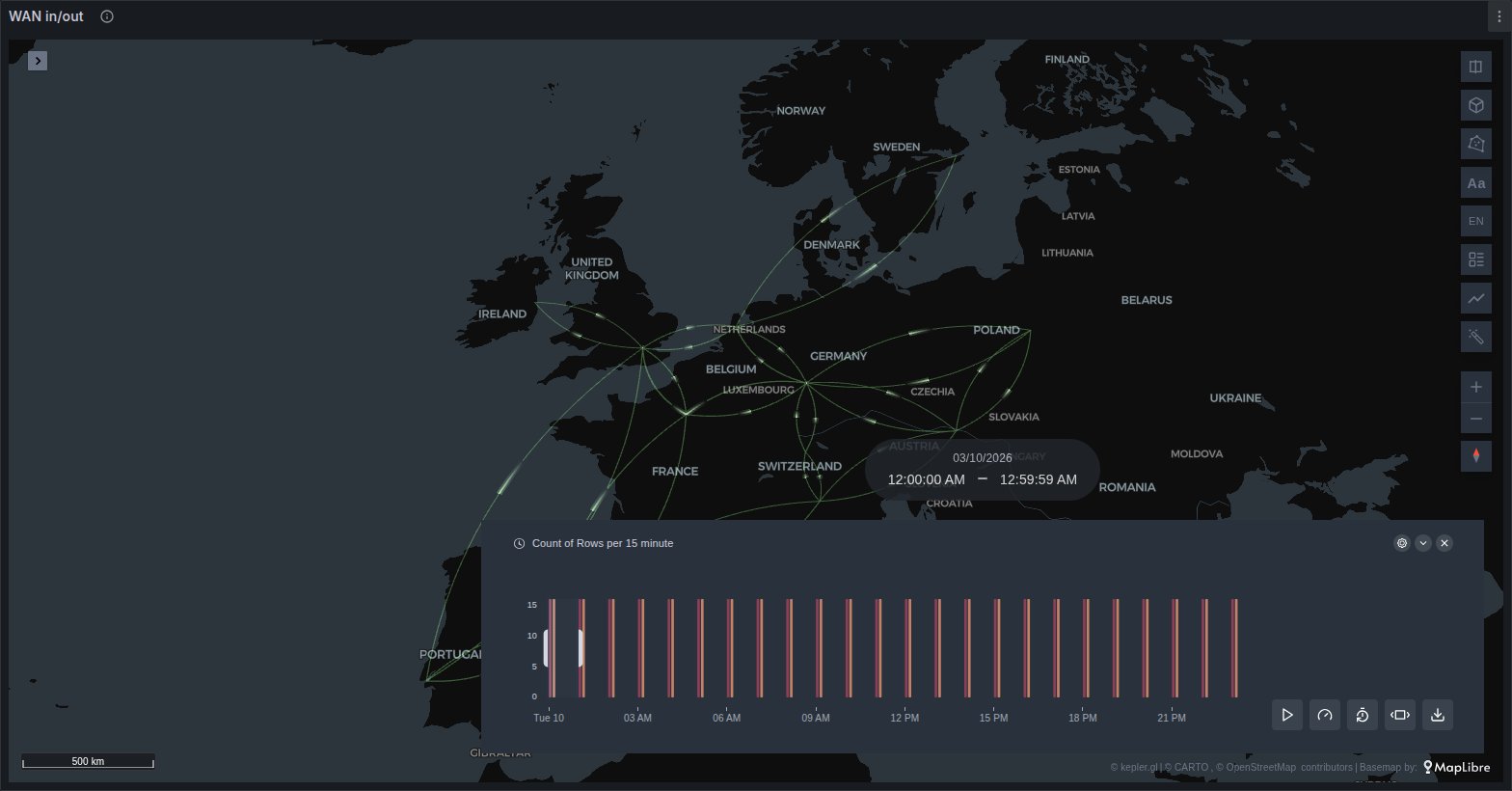
Link lines that move. Each line between two sites carries comets running from source to target, faster where a field you pick is higher. The line keeps the colour and width kepler gives it, so a link query still reads as a weathermap; the motion adds direction and pace on top.
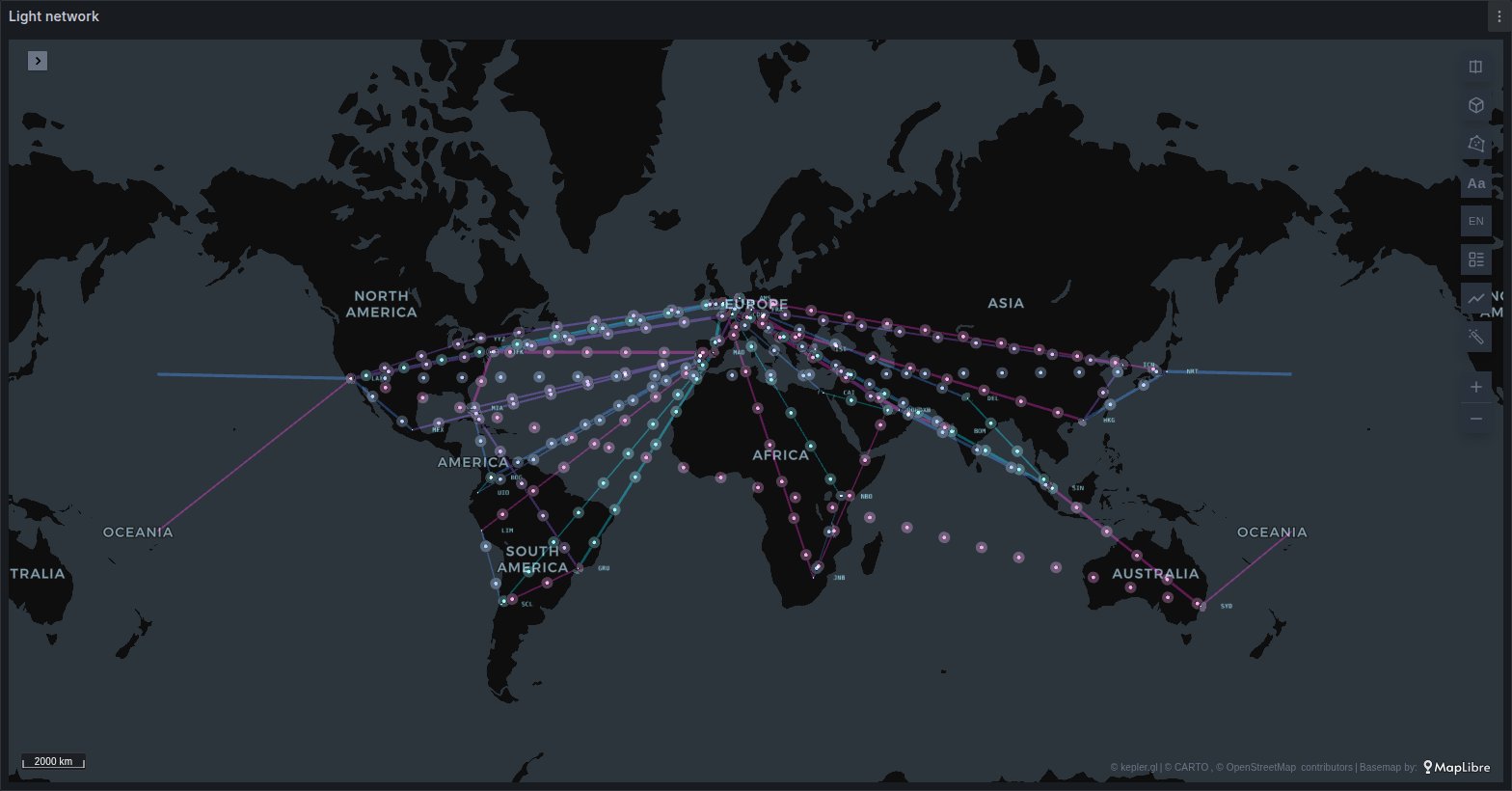
Two-way links can draw as two facing lanes or as weathermap halves, the lines can lie flat or rise as arcs, and the animation can be comets, dashes, dots or a pulse.
See it in the layer tour
The Power grid map of the layer tour, installed with the app, draws the interconnectors between sixteen European countries as Traffic lines: comets run with the flow, faster where it carries more power, coloured by the line's load, and change direction through the day. Its link query is a frame with source and target columns and a time, so kepler's time filter plays it.
What the query needs
Traffic draws whatever kepler's Line layer draws: one row per link, with a position at each end. The usual source is a link query, either a node graph or a frame with source and target columns, whose ends are placed by Places. Network links covers the two shapes; they are not repeated here.
A link query draws as a Line layer. To animate it, open the layer in kepler's layer panel and change its type to Traffic. The colours keep following the query's thresholds. Traffic never creates a layer by itself: it is there because you chose it, or because a saved map has one.
What Traffic adds is a Speed field. When you switch a layer to Traffic it is set once for you: to the link metric on a link query, otherwise to the layer's width field. A saved map keeps whatever it has.
The speed is scaled into Laps per cycle: the lowest value runs at the bottom of that range, the highest at the top, rounded to whole laps. Pace is counted in laps, not in distance, so at the same value a comet takes the same time to cross a short link as a long one. Without a speed field every link runs at the bottom of the range. A row whose speed is empty gets no comet; its line still draws.
Options
Traffic keeps kepler's Line layer settings (colour, stroke width, opacity and the rest) and adds a Traffic group, a Reverse direction group, kepler's Label panel and an Interaction group.
| Option | What it does | Default |
|---|---|---|
| Speed | the field that paces the comets | set when switched (see above) |
| Shape | Flat on the ground, or Arc lifted into an arc. Tilt the map to see the arcs | Flat |
| Arc height | the arcs' height, 0.1 to 2 (Arc only) | 1 |
| Two-way links | Straight, Lanes or Split; see Two-way links | Lanes when switched to Traffic |
| Lane bend | how far a lane bulges, 0.03 to 0.3 of the link's length (Lanes and Split) | 0.12 |
| Lane tilt | the same setting under Arc: how far each lane's arc leans, read as about 6° to 60° | 0.12 (about 24°) |
| Style | Comets, Dashes, Dots or Pulse | Comets |
| Laps per cycle | the range the speed is scaled into, 1 to 12. Reads Marks per cycle for the other styles | 1–6 |
| Cycle (s) | the length of one cycle, 1 to 20 seconds | 4 |
| Comet length | a comet's length as a share of one lap of the fastest links, 0.05 to 1 (Comets only) | 0.25 |
| Spacing (px) | screen pixels between marks, 8 to 200 (Dashes, Dots, Pulse) | 40 |
| Dash length | the share of each spacing a dash fills, 0.1 to 0.9 (Dashes only) | 0.5 |
| Animate | off draws still lines at full opacity, with no comets or marks | on |
| Glow | a soft halo under the comets or marks | off |
While the layer animates, the line underneath is dimmed so the motion stands out, a little more under dashes, dots or a pulse than under comets.
Text labels from kepler's Label panel sit at the middle of each link, or of each lane in Lanes and Split. Under Interaction, Allow hover turns the tooltip on or off, and History adds a chart of the hovered link's readings over time to the tooltip: the colour field by default, another numeric field, or Off.
Two-way links
A link that carries traffic both ways needs two lines that do not sit on top of each other.
- Lanes draws each direction as a curve bulging to the right of its own travel, so A→B and B→A become two facing arcs. Under Arc, each direction's arc leans to its right instead.
- Split draws each direction from its own end to the middle of the link, the classic weathermap half. Under Arc, each half runs from its end up to the top of the arc.
- Straight draws every row as one whole line, whichever way it runs.
A layer you switch to Traffic starts in Lanes. A saved map keeps the mode it was saved with.
There are two ways to give Traffic both directions.
Row pairs. Two rows whose ends are the same places reversed, A→B and B→A, pair by themselves. When the data has a time column (a link query carries its first time column under that name), a row pairs only with a row at the same time value. Each row keeps its own colour, width and speed.
Reverse fields. For one row per link with in and out columns, as SNMP data usually comes, set the fields in the Reverse direction group: Reverse colour, Reverse width and Reverse speed. Each row then draws a forward lane from the usual fields and a reverse lane from these. A reverse field left empty takes the forward value of the same row.
When both are present, paired rows win and the reverse fields are ignored for them. Reverse fields draw nothing in Straight.
The two directions share one set of scales. A reverse value is encoded with its forward channel's scale, domain and range, and the forward domain is widened to cover the reverse values, so equal values look equal whichever way they travel. The legend shows the forward channels only. A custom scale, such as the thresholds a link query brings, keeps its own breaks for both directions. If the forward channel has no field, or its scale cannot read the reverse field's type, the reverse field gets a scale of its own, and the two directions can no longer be compared.
Motion
The animation runs on its own clock, not on kepler's time filter, so it moves without anyone pressing play. The time filter still decides which rows are shown; see Time playback.
It stops when nobody can see it: while the panel is scrolled out of view and while the browser tab is in the background, and it picks up again when the panel comes back. On a machine set to reduce motion it does not run at all: comets are not drawn, and dashes, dots or a pulse stand still. On a machine without a graphics card it draws fewer frames, so the rest of the dashboard stays responsive.
When it does not draw
- No comets on a link. Its speed value is empty, or Animate is off.
- Lanes or Split look like Straight. A row draws as one straight line when nothing pairs it and no reverse field is set. A pair needs exactly reversed ends and, with a
timecolumn, the same time value. - Everything is Straight and Flat. On the globe, and for GeoArrow data, Traffic draws Straight and Flat whatever the settings say.
- Arcs look like flat lines. Seen from straight above they do; tilt the map.
- A grey line with no comets. In Lanes, Split or Arc, a link whose colour field has no value draws grey and gets no comets.
- No tooltip. Allow hover is off.
Use it for
WAN and backbone utilisation, inter-region cloud traffic, power interconnector flows, supply chain volumes between warehouses, migration or trade flows: any origin–destination metric that needs a direction. For the same animation along a real route rather than a straight line, use Pipeline. For origin–destination tables in the free panel, see Origin–destination flows.