Appearance
Fleet
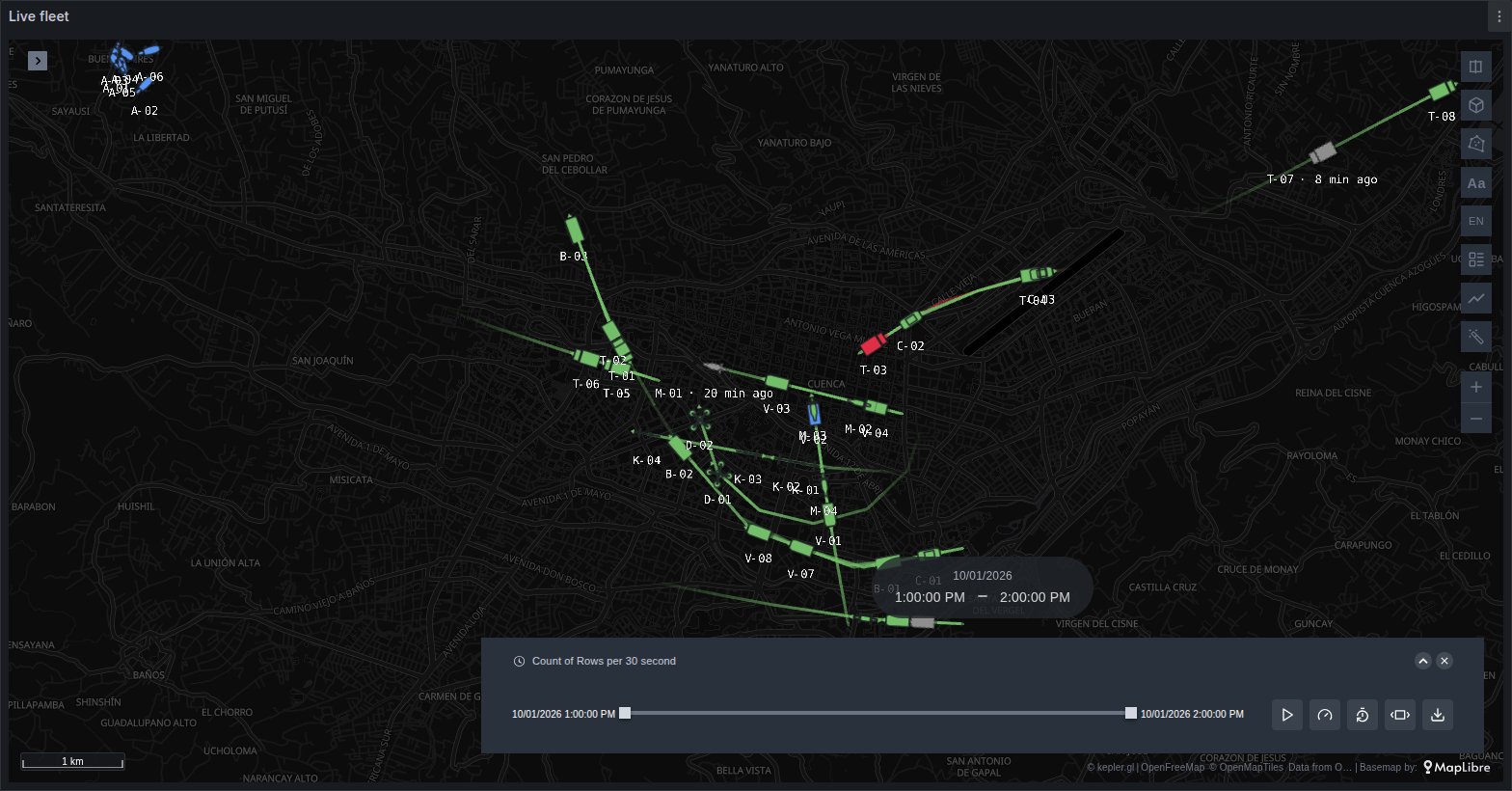
A Fleet layer draws each vehicle, vessel, drone, animal or device once, at its position now, turned to its heading, in its status colour, with a short trail behind it. An asset that has not reported for longer than you allow turns grey and dashed, and its label says how long ago it was last heard from.
The free panel's Trip layer answers a different question. It draws every path and replays it on a timeline. A Fleet layer answers "where is everything now, and is anything silent?":
| Trip layer (free panel) | Fleet (Plus) | |
|---|---|---|
| One mark per asset, at its last position | no | yes |
| Grey and dashed after a period of silence | no | yes |
| Heading without a heading column | no | yes |
| One Prometheus or Influx series per asset | no | yes |
| Short trail of fixed length, no playback | no | yes |
| Top-down silhouettes and 3D models | no | yes |
See it in the layer tour
The City map of the layer tour, installed with the app, draws a synthetic fleet in Cuenca in 3D: cars, vans, trucks, buses, bicycles, drones and a herd of cattle, each at its position now with a bundled model, three of them silent. Press ▶ on the time filter to replay the hour. To use your own data, swap the query and keep the panel.
A Surface layer in Count mode is a different tool for the same kind of data: it counts vehicles within a radius of each place and draws the result as bands and isolines.
What the query needs
An asset, a time and a position. When a query has all three and the map has no saved configuration yet, the panel adds a Fleet layer by itself. It also switches off the Trip, Symbols and point layers that would otherwise draw every ping. On a map that already has a saved configuration, add a layer from kepler's layer list and choose the Fleet type.
sql
SELECT vehicle_id,
       ts        AS time,
       lat, lon,
       heading,   -- optional
       speed_kmh, -- optional
       status,    -- optional
       type       -- optional
FROM vehicle_positions
WHERE $__timeFilter(ts)
ORDER BY vehicle_id, ts;| Role | Detected from (first match wins) |
|---|---|
| Asset | vehicle_id, vehicle, asset_id, asset, device_id, device, imei, mmsi, icao24, callsign, unit_id, serial, drone_id, animal_id, collar_id; then trip_id, tripid, track_id, trackid, trajectory_id, journey_id |
| Time | the first column the data source typed as time |
| Position | the usual latitude and longitude names, as for points |
| Heading | heading, bearing, course, cog, track, azimuth, orientation, yaw (numeric, degrees clockwise from north) |
| Speed | speed, speed_kmh, speed_kph, speed_mph, speed_ms, velocity, sog, ground_speed, groundspeed (numeric) |
| Type | type, asset_type, vehicle_type, device_type, kind, category, class (text) |
| Status | status, state, fleet_status, vehicle_status, asset_status (text) |
| Altitude | nothing: opt-in under Altitude (above ground) in 3D, for the same reason as on trips |
Names are matched case-insensitively and exactly. A vehicle or device column wins over a trip column, so a table with both groups its pings by vehicle. Every role can be set by hand under Columns in the layer settings, and Heading, Speed and Type can be set to None.
Without a time column every row becomes its own mark, with no trail and no silence check. Without an asset column all the rows are one track.
One series per asset
Prometheus, Mimir and InfluxDB return one series per metric and asset, with the asset in a label. The panel joins them into rows: one per asset and timestamp, a column per metric, and every other label as a column. Each metric carries its last value forward until its next sample. Name the metrics after the roles above (lat or latitude; lon, lng, long or longitude; and optionally heading, speed, status, altitude) and label them with one of the asset names:
promql
{__name__=~"lat|lon|speed", vehicle_id!=""}A row appears once both a latitude and a longitude are known.
Status colour
Under Status, Status from picks the colour:
- Colour column (default): the field set under kepler's Color. When the panel adds the layer and the query has a status column, it fixes the colours by value:
moving,ok,active,online,driving,running,en route,on timegreen;idle,stopped,parked,stationary,restingblue;warning,delayed,late,low battery,lowamber;fault,alarm,error,critical,offline,emergency,downred. Other values take spare colours in turn. - Moving / stopped: green when moving, blue when stopped. This is also what you get with no colour field. An asset is stopped when its speed is below Stopped below (speed), or, without a speed column, when it moved less than 10 m in the last minute.
Colours follow kepler's colour scale, not Grafana's thresholds.
Time reference: Live and History
What "now" means decides where each asset is drawn and which ones are silent.
- Live (dashboard now): the end of the dashboard's time range. If the whole feed stops reporting, every asset turns silent, which is what you want on a live wall. While a kepler time filter replays the data, its cursor is now.
- History (end of the data): the newest timestamp in the data, or the time filter's cursor. The dashboard's end never counts, so last month's record is not drawn as entirely silent.
The layer the panel adds starts on Live when the asset is a vehicle or device column, and on History when the only asset column is a trip. To replay a fleet, press ▶ on kepler's time filter, as described in Time playback.
Last-position feeds
Some sources return only the latest position of each asset, one row per asset per refresh. With Remember positions on Auto, the layer recognises this (at most one time per asset) and keeps each asset's recent positions between refreshes, for Remember for (min). That gives the asset a trail, a computed heading and a moving or stopped state. The positions are kept in this browser only, from when the dashboard was opened: a reload starts again. A remembered position more than 5 km from the asset's current one is dropped rather than drawn as a streak across the map.
Options
The settings below kepler's colour group, as labelled in the layer panel.
| Group | Option | What it does | Default |
|---|---|---|---|
| Columns | Asset, Time, Heading, Speed, Type | The column for each role; Auto detects it as above | Auto |
| Status | Status from | Colour column or Moving / stopped | Colour column |
| Signal and trail | Time reference | Live (dashboard now) or History (end of the data) | Live |
| Remember positions | Auto (when the data has one position per asset), On or Off | Auto | |
| Remember for (min) | How far back remembered positions go, 1–120 | 10 | |
| No signal after (min) | Silence before an asset turns grey and dashed | 5 | |
| Stopped below (speed) | In the speed column's unit | 2 | |
| Heading from | Auto (the column, else the track), Column or Track | Auto | |
| Trail (min) | How much of the recent track to draw | 5 | |
| Trail | Draws the trail at all | on | |
| Trail width, Trail opacity | 3, 0.9 | ||
| Fade the trail | Fades it towards its oldest point | on | |
| Animate the trail | Moves marks along it | off | |
| Trail style | Comets, Dashes, Dots or Pulse, as on Traffic | Comets | |
| Pulse cycle (s), Pulse speed from | The animation's period, and the column that makes some assets pulse more (Auto: the speed) | 3, Auto | |
| Look | Marker | Silhouette, Arrow or Icon in a disc | Silhouette |
| Display | Flat or 3D | Flat | |
| Ghost at crosshair | See The card | on | |
| Size | In pixels, 16–96 | 32 | |
| Shrink when zooming out | Smaller marks below Full size from zoom, at Shrink rate | off (10, 0.5) | |
| Shadow | on | ||
| Altitude line | 3D only: a line from the asset down to the ground | on | |
| Model colours | 3D only: Original, status disc below, Tinted by status or Original, status light on top | Original, status disc below | |
| Smooth updates, Smooth duration (ms) | On a refresh, each asset glides to its new position | on, 1000 | |
| Label | Label | None, Name or Name, and age when silent | Name, and age when silent |
| Label size, colour, outline, distance | A distance of −1 follows the mark's size | 12, white, on, −1 | |
| Types | Shape, Model | Per value of the type column; see 3D models | Auto |
The label shows the field set as kepler's text label, else the asset column.
The card
With Card instead of tooltip on (the default), hovering an asset shows a card in place of kepler's tooltip: the asset's id and name, its type, its speed in large type in the status colour, a line with its status and age, heading and altitude, a speed chart, and a band under the chart with the status over time. Without a speed column the chart shows speed computed between pings, in km/h. Speed unit only sets the text written after the value.
Click an asset, or a card's pin, to keep its card on the map; click again to let it go. Pinned cards are saved with the map. Cards sit above every layer.
| Option | What it does | Default |
|---|---|---|
| Card window | Auto (remembered positions, else dashboard), Trail, Remembered positions, Dashboard range or Last N minutes | Auto |
| Card size, Card opacity | Small, Medium or Large; the opacity of the background only | Medium, 0.9 |
| Follow shared crosshair | The dashboard's shared crosshair moves the card's cursor and reading | on |
| Show crosshair value | The reading at the crosshair, and the change since, beside the speed | on |
| Change colour | Neutral, Rising is good or Rising is bad | Neutral |
| Card hover drives graphs | Hovering a card's chart moves the shared crosshair of the dashboard's graphs | off |
The crosshair options need Shared crosshair or Shared tooltip in the dashboard settings. With Ghost at crosshair on, hovering a time series panel draws a translucent copy of each asset where it was at that instant, heading as it did then; the asset itself stays at now. Hovering the chart on one of the layer's own cards, with Card hover drives graphs on, ghosts that asset alone.
A click on an asset also reaches the panel's click variables, so it can drive other panels: see Cross-filtering. A polygon drawn on the map keeps the assets that are inside it now, each with its whole trail.
Following an asset
The camera can follow one asset. Under Camera:
- Follow asset: an asset's id or name, or a dashboard variable such as
$vehicle. The map follows it when the dashboard loads. - Camera mode: Follow keeps the asset centred and leaves zoom, tilt and bearing to you; Orbit circles it once every Seconds per orbit (20–300, default 60); Chase sits behind it, tilted, and turns as it turns.
A card's crosshair button, left of its pin, follows that asset until you leave the page. A chip at the top of the map names the followed asset and switches the mode. Dragging the map pauses a saved follow, which resumes by itself after 10 seconds; the chip's ✕, or Esc, stops it. The follow camera runs on the main map only, not on a split map or the globe.
3D models
With Display on 3D, each type value gets a Model. On Auto, with the Silhouette marker, the type value picks a bundled model by name: bus, school bus, tram, metro, train, ambulance, police, fire truck, taxi, van, truck, car, bicycle, boat, ferry, cargo ship, plane, airbus, boeing, cessna, helicopter, drone, uav and similar words. Types with no bundled model, such as motorbikes, scooters and robots, keep their extruded silhouette. With a column picked under Altitude (above ground), every model flies at its height in metres, with a line down to the ground.
The road, rail and water models come from Kenney's Car Kit, Train Kit and Watercraft Kit and Quaternius' Public Transport Pack, all CC0; the aircraft are modelled for the panel:
| Group | Models |
|---|---|
| Road | Car, Taxi, SUV, Van, Truck, Pickup, Flatbed, Ambulance, Police car, Fire truck, Garbage truck, Tractor, Bus, School bus, Bicycle |
| Rail | Train, Locomotive, Metro, Tram, High-speed train, Freight car, Tank car |
| Water | Boat, Speedboat, Sailboat, Tug, Cargo ship, Ferry |
| Air | Airliner, Light aircraft, Helicopter, Drone |
Under Types, each type value (or All assets, when there is no type column) can pick a different model, None (shape), or Custom URL… for your own .glb file. The server that hosts it must allow cross-origin requests (CORS). A model that does not load is drawn as the built-in shape, and the settings panel lists it.
The same group picks the Shape for each value: Auto (by name), one of twelve silhouettes (Truck, Van, Car, Bus, Motorbike, Bicycle, Drone, Boat, Plane, Person, Animal, Generic), or Catalogue symbol….
GTFS-realtime
The panel does not decode the GTFS-realtime format itself. A data source has to return the VehiclePositions feed as rows: vehicle_id, a time, latitude, longitude, and whatever else you need, such as the route. From there the Fleet layer takes the vehicle, not the trip, as the asset, and Remember positions gives each vehicle a trail, a heading and a speed chart from one position per refresh.
When it does not draw
- You get dots or a Trip layer instead. One of asset, time or position was not recognised. Rename the column in the query, or add the Fleet layer and set it under Columns.
- An asset you expect is missing. An asset with no rows in the dashboard range is not in the query, so it cannot show as silent. Widen the range, or add a query such as
last_over_time(...[24h])for the last known position. - Everything is grey. On Live, the dashboard's end is long after the newest data. Move the range to the data, or set Time reference to History.
- No trail on a live feed. The feed returns one position per asset. Leave Remember positions on Auto or set it to On, and wait for a few refreshes.
- A custom model is drawn as a plain shape. It did not load; the settings panel names it. Check the URL and the server's CORS headers.
Use it for
Vehicle and bus tracking, delivery and field service, AIS vessels, drones, livestock and wildlife collars, asset tags on a site, GTFS-realtime feeds.