
Appearance
3D Shape
Each point rises as a solid (a box, a cylinder, or a hexagonal or triangular prism) with its height, width and colour read from the query's columns.
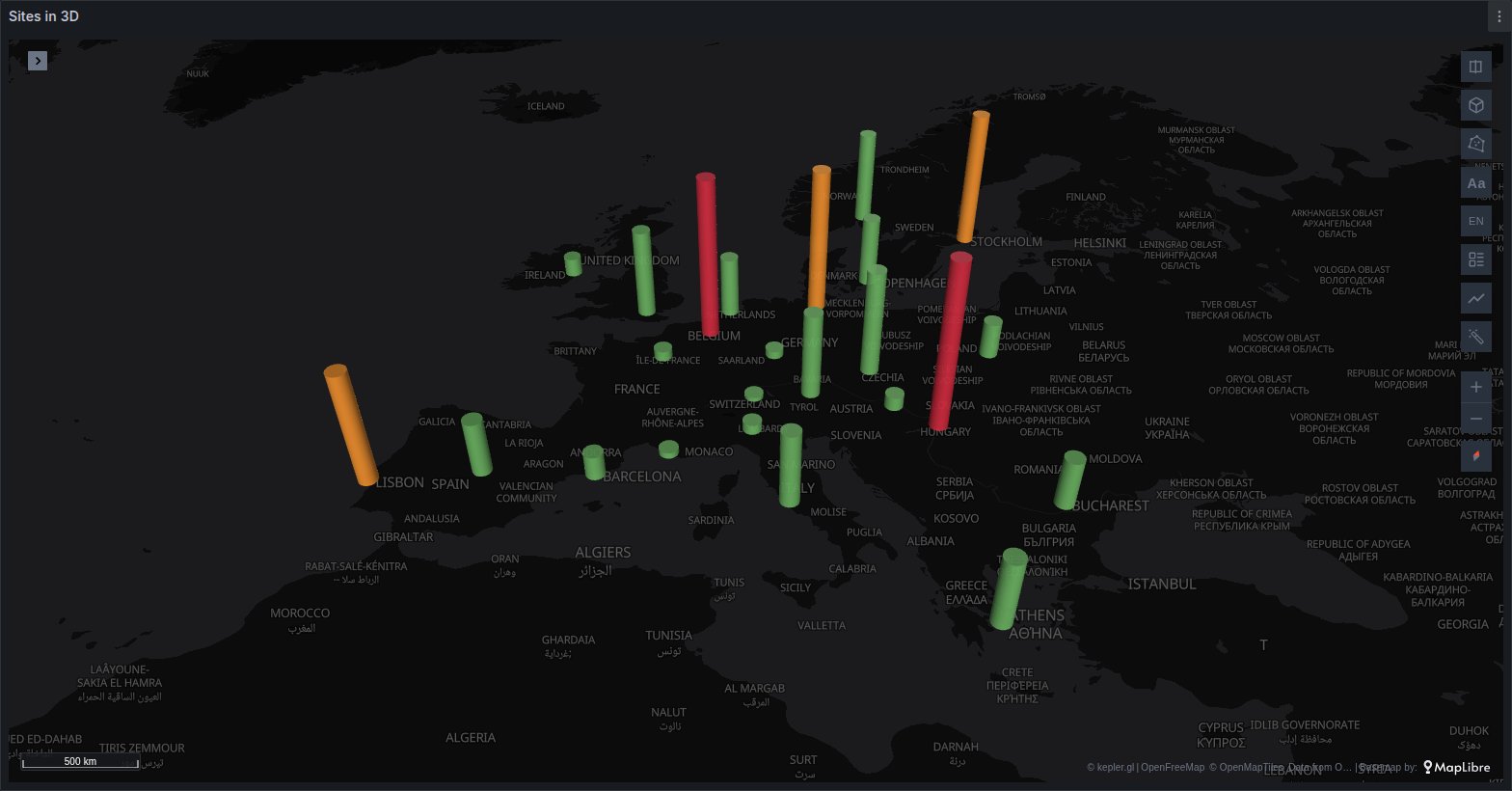
See it in the layer tour
The Power grid map of the layer tour, installed with the app, raises each country as a cylinder as tall as its demand, sized in pixels, under the renewable share gauges and between the Traffic lines of the interconnectors. The map opens tilted so the heights read. It reads synthetic data, so it draws with no setup.
The position can also come from a place name: a query like avg by (site) (utilizacion_pct), with site named as the place column in the Places options, places each site when its values are places Places recognises, such as cloud regions, airport or PoP codes or countries. Sites known only by names of your own need latitude and longitude columns instead.
Grafana may replace the tour when the app is updated, so copy the dashboard before changing it.
What the query needs
One row per place, with a position and at least one number:
sql
SELECT site,
       lat         AS latitude,
       lon         AS longitude,
       utilisation AS value
FROM sites;- A position. Latitude and longitude columns, as for any point layer, or a place name that Places turns into coordinates.
- Numeric columns for anything that should vary: height, width, length, colour or rotation. Each one is chosen in the layer's settings. None is required, since every size has a fixed value.
- Any column for the label on top, if you turn it on: text, numbers, times and booleans all work.
The layer is never created on its own. Add it in kepler's layer panel with Add Layer, choose 3D Shape as the layer type, and pick the latitude and longitude columns.
Options
The layer's settings are kepler's Color group followed by the groups below.
Color
kepler's own colour group: a single colour, or a Color column with a colour range and its scale. A custom range with breaks gives threshold colours. See colour palettes and scales. Opacity applies to the whole solid.
3D Shape
| Option | What it does | Default |
|---|---|---|
| Shape | Box, Cylinder, Hexagonal prism or Triangular prism. | Box |
| Units | Pixels keeps a solid the same size on screen at every zoom; Metres ties it to the ground. | Pixels |
| Square base | Length follows width. Turn it off to set a separate Length. | On |
| Per place | All rows, Last, Min or Max: what a place that reports more than once draws. | Last |
| Asset | Auto, None (by position), or a column naming a moving asset. | Auto |
Width, Length and Height
Each size has its own group (Length only appears with Square base off). Pick a column for it, or leave the column empty and type a fixed Size.
| Option | What it does | Default (pixels) |
|---|---|---|
| Size | The fixed size when no column is chosen. | Width and length 20, height 40 |
| Column values | Scaled maps the column onto a size range through kepler's scale; Raw uses the value itself. | Scaled |
| Smallest, Largest | With Scaled: the sizes the column's lowest and highest values get. | Width and length 2–60, height 5–200 |
| Multiplier | With Raw: the value is multiplied by this to give the size. | 1 |
In metres the defaults are 100 for width and length, 200 for height, and a range of 10–5,000 for each. Switching Units carries over every size still at its default, so a fresh layer stays sensible either way; sizes you typed yourself are kept as they are. A size is capped at 2,000 pixels or 50,000 metres.
Raw suits a column that already holds a size, such as a building's height in metres. Scaled suits anything else, such as a percentage or a request count.
Rotation
| Option | What it does | Default |
|---|---|---|
| Angle | A column of degrees clockwise from north; each solid is turned by its own value. | none |
| Angle (°) | Added to every solid's heading, or the heading itself without a column. | 0 |
Rotation shows on boxes and prisms; a cylinder looks the same at any angle.
Label on top
| Option | What it does | Default |
|---|---|---|
| Label on top | Writes a value above each solid. | Off |
| Label | The column shown. Without one, the height column is shown. | none |
| Label unit | Text added after a number, such as % or kW. | empty |
| Label size | Text size in pixels, 8 to 40. | 12 |
| Label colour | The text colour. | Follows the theme |
Interaction
Allow hover turns the tooltip on or off, as on kepler's own layers. History chooses what the popup charts for the hovered place: the colour column (Color field, the default), any numeric column, or Off.
Behaviour worth knowing
- Per place. A query that returns a time series per site would stack every reading on the same spot. With Last (the default) each place draws its newest row; Min and Max draw the row with the lowest or highest height value, or colour value when there is no height column. All rows draws every row. A place is its exact coordinates, or the asset named by Asset.
- Moving assets. With an asset column and Last, a solid follows its asset between reports, the way the Fleet layer does, while its size and colour stay those of its row.
- Filters and time. The layer follows kepler's filters and the time filter, so a dashboard can replay it. With Last, each frame shows each place's newest row inside the window.
- Clicks and polygons. A click on a solid reaches the panel's click variables, and a drawn polygon filters the layer: see cross-filtering and what all Plus layers share.
- Pixels or metres. In pixels the solids keep their size on screen as you zoom, which suits a country-wide view. In metres they grow and shrink with the map, which suits a city where the solids stand on real sites.
- Tilt. Heights only show with the map tilted. Tilt it by dragging with the right mouse button, or save a pitch with the map, as the layer tour does.
When it does not draw
- The layer is not there. It is never added automatically; add it with Add Layer.
- Some places are missing. A row is skipped when a column chosen for one of its sizes is empty or not a number, when a size comes out at zero or below, or, with a log scale, when the value is zero or negative.
- Everything looks flat. The map is seen from straight above; tilt it.
- The solids are tiny or huge. Check Units: a size typed for pixels means something very different in metres. Adjust Smallest and Largest for a Scaled column, or the Multiplier for a Raw one.
- Only one solid per site. That is Per place: Last. Choose All rows to draw every row.
- No label. Label on top needs a label column or a height column, and an empty value writes nothing.
- No tooltip. Allow hover is off.
Use it for
Demand or load per substation, sales per store, request volume per data centre, population or cases per city: ranking sites at a glance in a tilted view.