
Appearance
Coverage and Coverage 3D
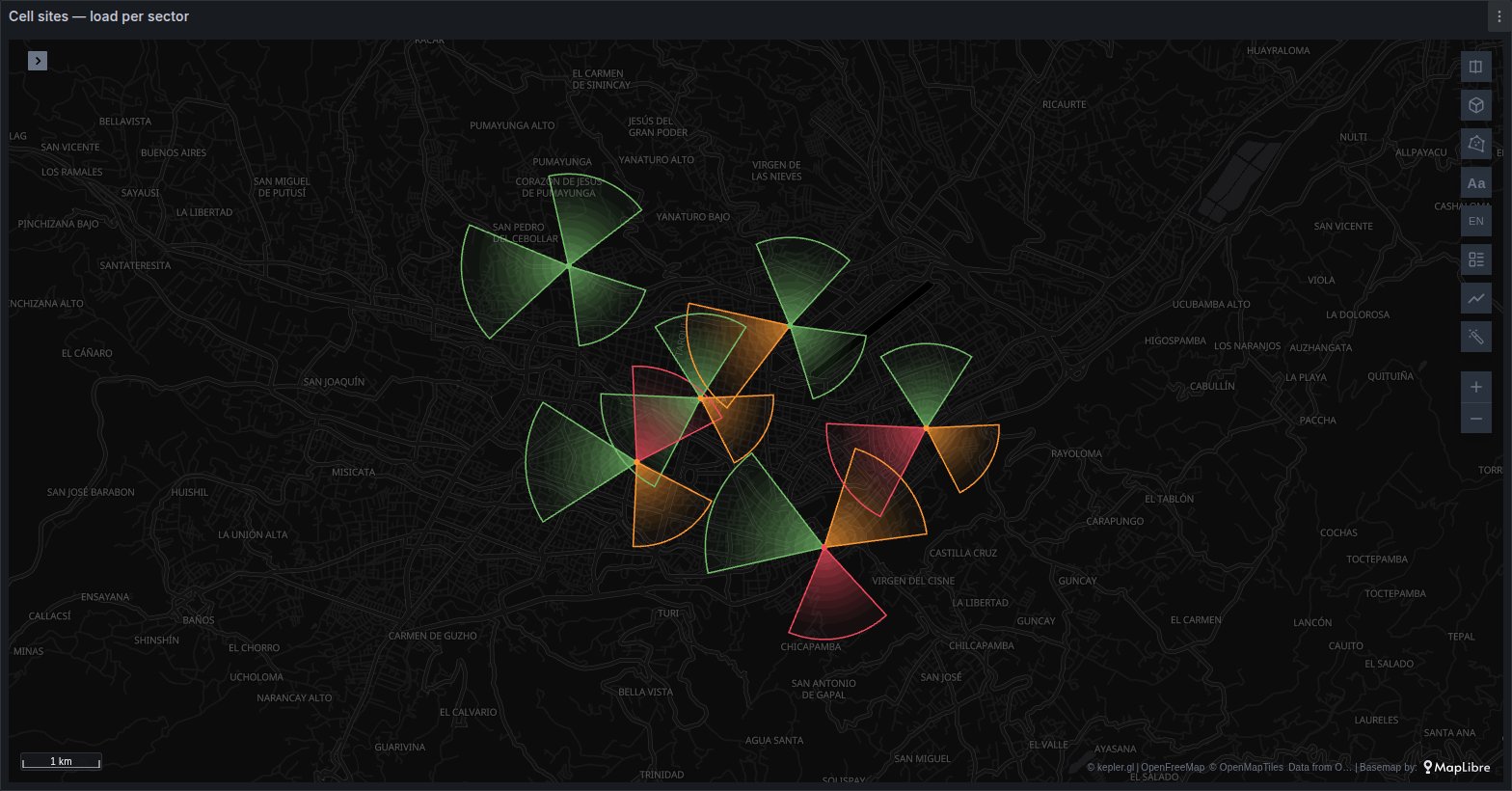
One sector per row: the area an antenna, a camera, a radar or a light covers, drawn from where it points (azimuth), how wide it looks (beamwidth) and how far it reaches (range). A mast with three sectors is three rows and draws three wedges.
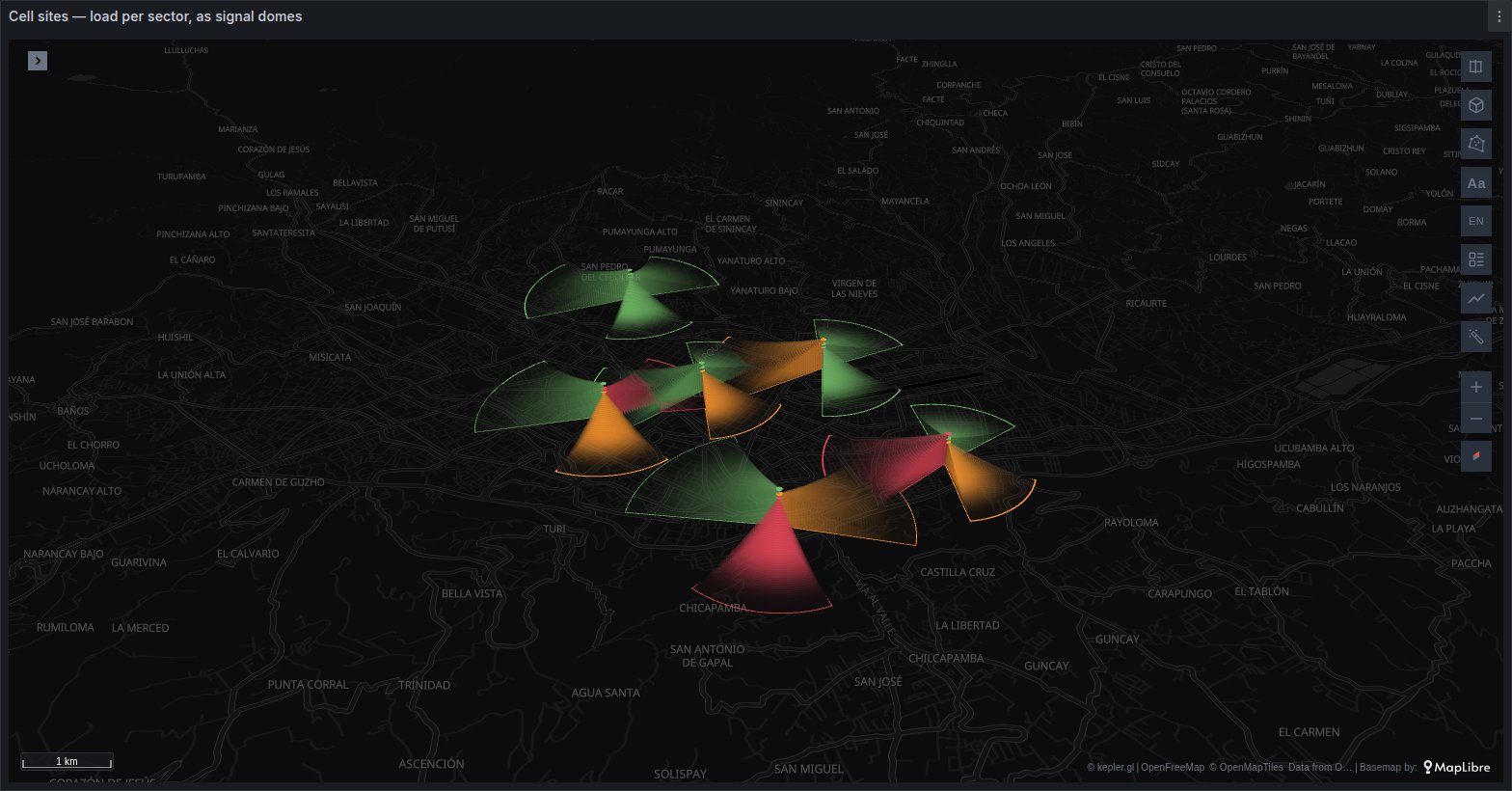
Coverage 3D is the same layer with its 3D dome switch on: each sector stands up as a stepped dome or cone, highest at the site and falling to the ground at its range.
See it in the layer tour
The City map of the layer tour, installed with the app, draws Coverage 3D on synthetic data: six cell sites in Cuenca as signal domes coloured by load per sector, and a set of cameras with their fields of view as cones under a radar's dome, with a fleet moving among them.
Edit the panel and swap a query for your own: the layers keep their settings as long as your columns have the same names. To add a layer to another map, open kepler's side panel, choose Add Layer and pick Coverage as the layer type. The panel never adds a coverage layer on its own.
What the query needs
One row per sector, with the site's position and the three numbers that shape the wedge:
| Column | Unit | Notes |
|---|---|---|
| latitude, longitude | degrees | the site; picked like any point layer's coordinates |
| azimuth | degrees clockwise from north | where the sector points |
| beamwidth | degrees | the sector's opening; 360 or more is a full circle |
| range | metres | how far it reaches, or any number you scale onto metres |
| a value | anything | what the sector is coloured by: load, events, lux |
None of the three is required: each can be a fixed value for the whole layer instead of a column. A set of identical street lights needs only a position and a value to colour by; a radar sweeping all round needs no azimuth at all.
The cell sites in the layer tour come from a query of this shape:
sql
SELECT site,
       sector,
       load_pct,
       azimuth,
       beamwidth,
       range_m,
       latitude,
       longitude
FROM sectors;
Azimuth, beamwidth and range are not detected by name. Pick each column in its own group of the layer's settings, below. What a new coverage layer does pick for you is its colour: the first numeric column that is not a coordinate, an id or one of the wedge's own numbers (names starting with azimuth, bearing, heading, direction, beam, hbw, range, radius, distance, inner or tilt), coloured green, amber and red with breaks at 70 % and 90 % of that column's largest value. Change the column and its breaks in kepler's Color group as on any layer; see colour palettes and scales.
Options
Everything is on the layer's own panel inside the map. After kepler's colour group come four groups of the layer's own — Azimuth, Beamwidth, Range and Look — then Interaction.
Azimuth, Beamwidth and Range
Each group starts with a column picker. Leave it empty to use the fixed value under it.
| Option | What it does | Default |
|---|---|---|
| Azimuth (°) | without a column, the direction of every sector; with one, an offset added to it | 0 |
| Beamwidth (°) | the opening of every sector; hidden when a column is picked | 65 |
| Range (metres) | the reach of every sector; shown only without a column | 1000 |
| Column values | with a range column: Raw reads it as metres, Scaled spreads it over a span | Raw |
| Multiplier | Raw only: the column is multiplied by this, so kilometres become metres with 1000 | 1 |
| Shortest (metres), Longest (metres) | Scaled only: the span the column is spread over, using the scale picked on the column | 100, 5000 |
| Inner radius (metres) | leaves a hole round the site, so every sector starts this far out | 0 |
The azimuth offset is how a column measured from somewhere other than north is put right, or how a whole set of cameras is turned at once.
Look
| Option | What it does | Default |
|---|---|---|
| Per place | All rows, Last, Min or Max when a sector reports more than once (see below) | Last |
| Asset | the column that names a moving sensor: Auto, None (by position) or a column | Auto |
| Fade with distance | fades each sector from full opacity at the site to almost nothing at its range | off |
| 3D dome | stands each sector up in 3D (see the next section) | off |
| Outline | draws the edge of each sector in its colour | on |
| Outline width | the edge's thickness, from 0.5 to 10 | 1.5 |
| Site dot | marks the site with a dot | on |
| Site dot size | the dot's size, from 1 to 20 | 3 |
Opacity is kepler's own, in the colour group; a new coverage layer starts at 0.5 so overlapping sectors stay readable. Larger sectors are drawn first, so a small one inside a big one stays visible.
Coverage 3D
Switching 3D dome on shows four more settings. Tilt the map with the 3D control to see the result.
| Option | What it does | Default |
|---|---|---|
| Profile | Dome falls along a curve, steep near the site; Cone falls in a straight line | Dome |
| Detail | how many steps each sector is built from: Low 24, Medium 48, High 96 | Medium |
| Height in | % of range or Metres | % of range |
| Height (% of range) | the top as a share of each sector's own range, from 5 to 200 | 30 |
| Height (metres) | the same top for every sector, from 1 to 50,000 | 200 |
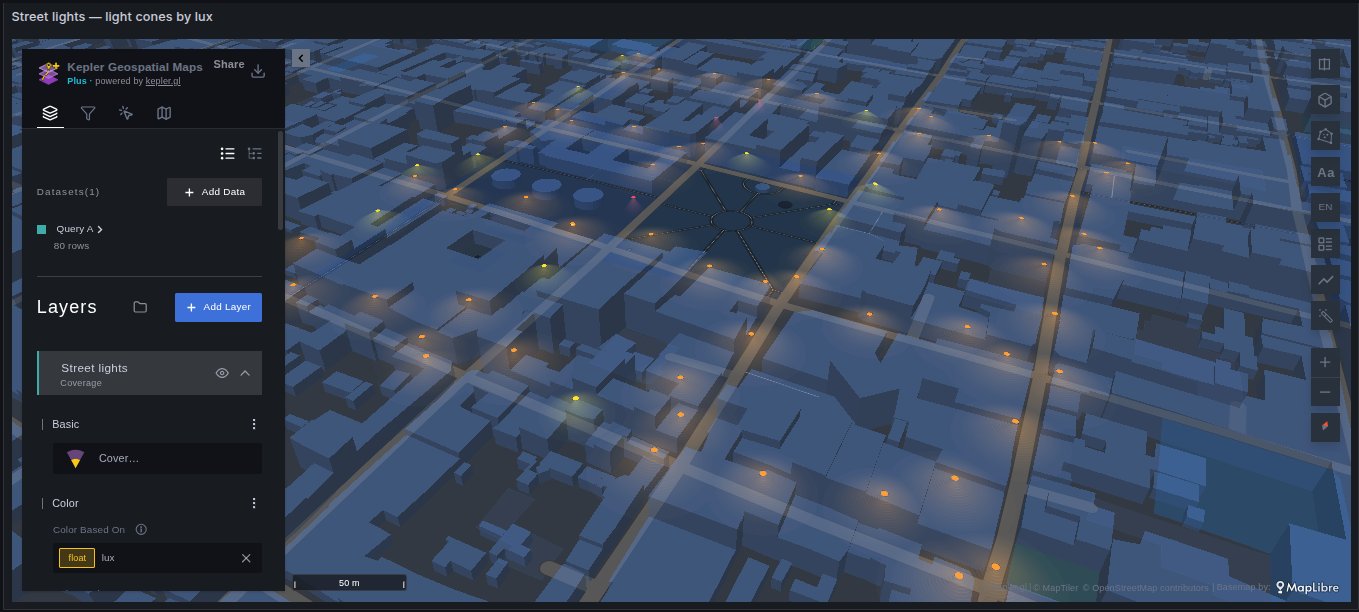
A height in percent makes a long-reaching sector a tall one, which suits signal domes. A height in metres keeps every sector at one height whatever its reach, which suits light cones from poles of the same height: street lights read well as cones 9 m high at High detail. Fade with distance still applies in 3D, fading each step as it goes out.
Interaction
kepler's Allow hover switch, and History: hovering a sector shows its readings over the dashboard's time range under the popup's fields. It charts the Color field by default, any numeric column, or nothing (Off). See what the Plus layers share.
Behaviour worth knowing
- Per place. A query that returns a time series gives each sector many rows. A sector is its site's coordinates plus its azimuth, so the three sectors of one mast stay apart. Last draws each sector's newest row, Min and Max the row with the lowest or highest colour value (or range, without a colour column), and All rows draws every row, one on top of another.
- Moving sensors. When Asset finds an id column (
device_id,unit_id,vehicle_idand the like) and that asset reports from more than one position, it is one sector wherever it is: with Last the wedge glides between its positions and turns with its azimuth. An asset that always reports from the same spot, such as a mast, stays a set of sectors by coordinates and azimuth. None (by position) turns this off. - Time filter. The layer follows kepler's filters and its time filter, so a time series can be played back and Last shows each sector as it was at that moment. See time playback.
- Clicks and polygons. A click on a sector reaches the panel's click variables, and a polygon drawn on the map filters the layer like kepler's own. See cross-filtering.
When it does not draw
A row is skipped, without a message, when:
- an Azimuth column is picked and the row's value is empty or not a number;
- a Beamwidth column is picked and the row's value is empty, not a number, or 0 or less;
- a Range column is picked and the row's value is empty or not a number, or works out at 0 metres or less — with Scaled on a log scale, also when the value is 0 or less;
- Inner radius (metres) is as large as the sector's range or larger.
With no range column, a fixed Range (metres) of 0 draws nothing at all.
Other things that look like a fault:
- One wedge where a mast has three. With no azimuth column, sectors at the same coordinates are one place, and Last keeps only one. Pick the azimuth column, or set Per place to All rows.
- Sectors far too large or too small. A raw range is read as metres. Use Multiplier for kilometres or feet, or Scaled for a column that is not a distance at all. Ranges are capped at 500 km.
- 3D domes look flat. The map is not tilted, or the height in metres is small next to the range.
- No popup on hover. Allow hover is off, or kepler's tooltip is turned off for the map.
Use it for
Mobile network sectors and their load, CCTV and radar fields of view, street lighting by lux, Wi-Fi access points, sensors with a directional reach, siren or loudspeaker coverage.