
Appearance
Floors: indoor maps
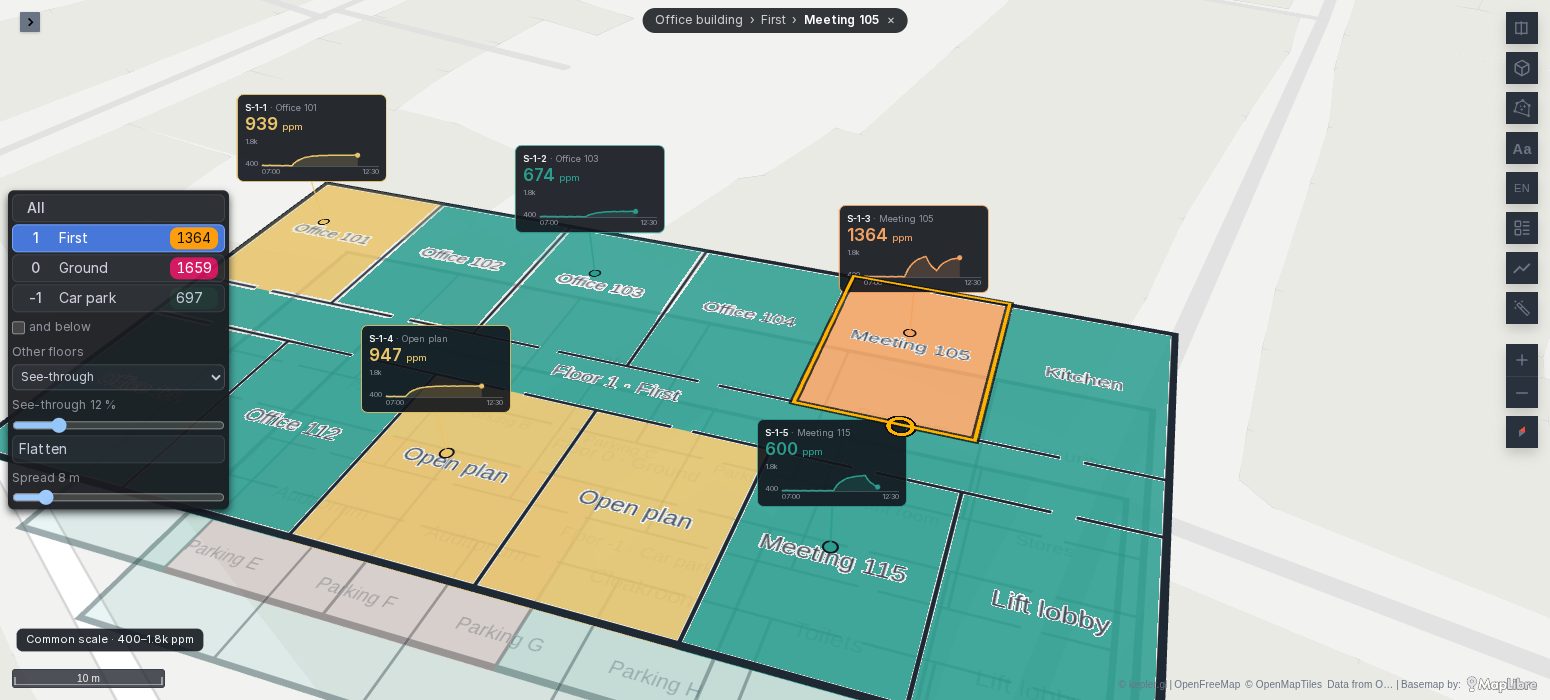
Floors turns a Plus map into an indoor map. A lift panel over the map lists the floors your rows stand on. Pick one and the map keeps that floor's rows, with the floors stacked in 3D and the others seen through. The floor is a dashboard variable both ways, so a dropdown, a link, a table or a click on a room moves the map, and the other panels can follow the floor shown.
Since Plus 1.7.0
Floors is new in Plus 1.7.0, not released yet.
Floors draws what your queries hold: rooms, desks and zones as polygons, sensors and people as points, plans as pictures, a 3D model's parts. It needs no new layer and no new data source. This page covers the floors themselves; Floor plans and rooms covers the pictures and the rooms traced on them, Buildings and sites a campus or a portfolio of buildings, and Indoor tab and settings every setting.
See it in the indoor tour
The app installs Kepler Plus tour — Indoor maps, two indoor maps on synthetic rows that need no setup: an office building of three floors with its plans, rooms coloured by CO₂, sensors on 3D callouts and a table that picks a room, and a bottling plant as a digital twin through a shift. See Template dashboards.
Two more run on real buildings among the live demos, public and read-only: Audimax Hamburg from its evacuation plans (see Floor plans and rooms) and TUM Garching through a day of lectures (see Buildings and sites).
What it needs
One column holding each row's floor, in any of the shapes indoor data comes in:
| Value | Read as |
|---|---|
0, 1, -1, 2.5 | A floor by its number, as an IMDF ordinal or a BIM storey index: 0 the ground floor. |
"0;1" | OpenStreetMap's level naming several floors: the row shows on each (a room over two floors). |
"-1-2", "-2--1" | A span of floors: every floor from one end to the other (a staircase). |
"G", "LL", "Mezzanine" | A floor by name only. It is listed, after the numbered floors, but stays on the ground. |
The column is found by its name: level, ordinal, floor, level_ordinal, floor_number, floor_no, storey, story, etage, piso or nivel, or the one you choose. A second column can name each floor (floor_name, level_name, floor_label, level_label, storey_name): the picker then shows 1 First rather than 1.
Give your floors a number whenever you can, and their names in the name column: a number tells Floors which floor is above which, so it can stack them.
Floors can also be added by hand in the Indoor tab, for a building that has no data yet: see Start from nothing.
Turn it on
In the panel's options, open the Floors group and turn on Floor picker. The group holds what a dashboard is built with:
| Option | What it does |
|---|---|
| Floor picker | Turns the indoor map on. |
| Floor column | The column holding each row's floor. Empty finds it by name. |
| Floor variable | A dashboard variable the picker writes and follows. See The floor variable. |
| Default floor | The floor the map opens on when the variable names none (0, G). Empty opens on every floor. |
The same switch is at the top of the Indoor tab in kepler's side panel (the last tab, its icon a stack of floors), with everything else Floors does. See Indoor tab and settings.
Floors acts on the map only from the indoor zoom up, 17 by default: zoomed out further, every building stands on its default floor with a card over it. See Zoomed out. The indoor zoom can be lowered, or set to 0 to keep the map indoors at every zoom.
The floor picker
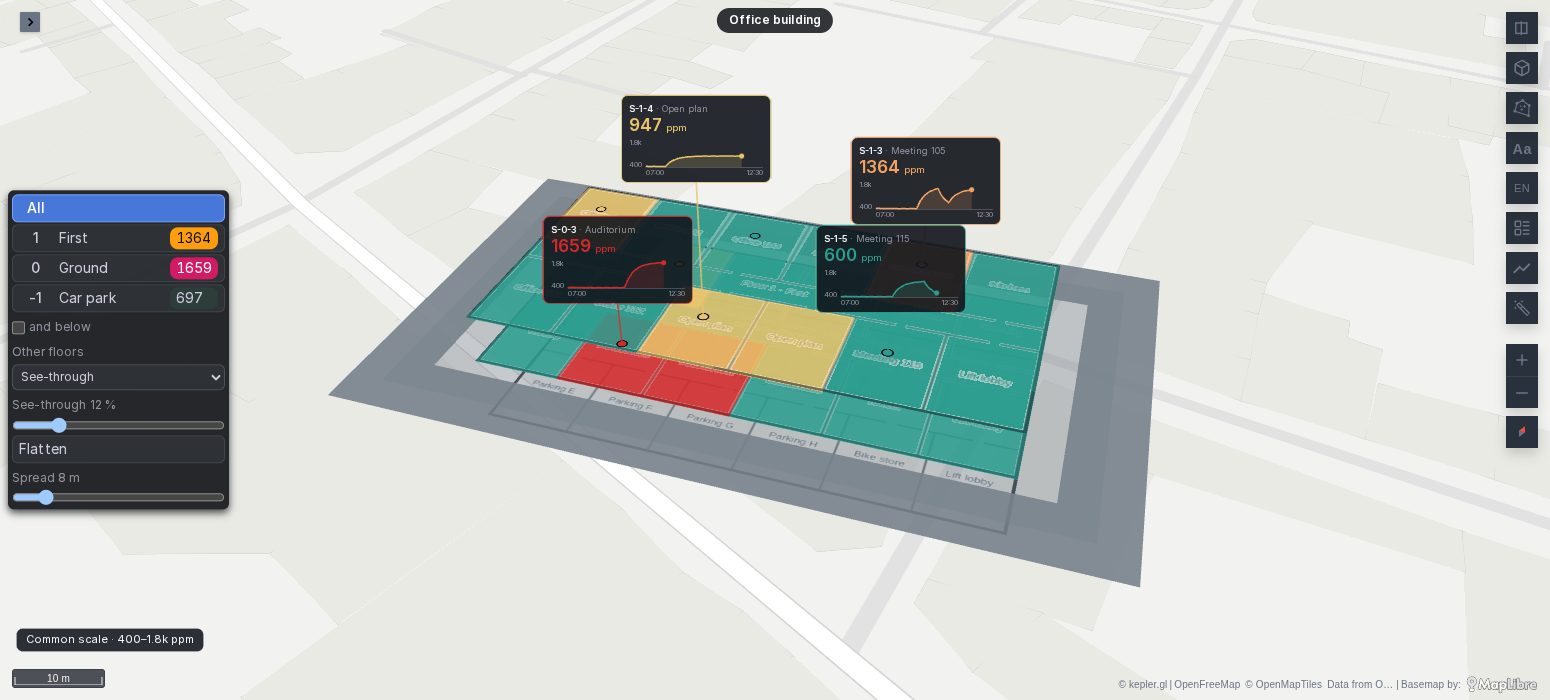
The lift panel at the left of the map, top floor first:
- All shows every floor, stacked.
- Each floor shows its number, its name and how many rows it holds, or a figure such as its worst room. A click picks it; a second click goes back to every floor.
- and below keeps the floors under the one picked too, as a building cut open above that floor. A floor known only by name is shown alone.
- Other floors: what the floors not picked show. Hidden; Outlines, the edges of their rooms at their own height; or See-through, their rooms, walls and plans faded to the opacity under it. Seen through, the other floors keep their shapes only, not their points, cards or labels, and nothing on them answers the mouse.
- Stack and Flatten glide the floors apart and back onto the ground. Spread sets how far apart they stand, in metres.
Besides the floor, what the picker sets (and below, Other floors and how faint, the spread) is saved with the dashboard: change it, save, and the map opens that way. A viewer who cannot save changes it for their own look only. The floor picked is not saved: the map opens on the floor its variable names, else on the one set to open the map.
Picking a floor flies the map to it, framed and at its height, unless Fly to the floor picked is off in the settings. Seen through, the floors above the one picked fade out as the map zooms in on it, so they no longer hide it; Floors above in the settings keeps them, or hides them.
How the floors stand
With a spread, each floor stands at its height: floor 0 of every building on the ground, the floors above at one spread each, and basements under the map. On the ground in the settings lays instead the floor picked on the ground, so its rooms lie on the base map's streets, or always the lowest floor.
A floor can have its own height in its window (a tall lobby, a low plant floor) in place of the spread, and a building its base, for one standing up a hill. See Buildings and sites.
A row on several floors ("0;1", a double-height hall) shows when any of them is picked, standing on the lowest of them. A floor known only by name has no height and stays on the ground.
The floor variable
Set Floor variable to the name of a dashboard variable, such as floor: a Custom or Text box variable, or a Query variable listing your floors. Then:
- picking a floor on the map writes its number (or name) to the variable, and All empties it;
- choosing a floor in the variable's dropdown, opening a link with
var-floor=2, or a table or another panel setting it, moves the map to that floor; - the other panels read it, as any variable:
sql
-- A table of the rooms on the floor shown; every floor when the map shows them all.
SELECT room, co2_ppm, people FROM rooms_now
WHERE '${floor}' = '' OR level = '${floor}'
ORDER BY co2_ppm DESC;
A click on a room can pick its floor: under the panel's Cross-filtering options, add a Click mapping from the floor column to the floor variable (see Click). Seen with every floor, a click on a room of the second floor then takes the map to the second floor. To go to a room, a sensor or a machine by name, on whichever floor it is, use the selection variable.
Which queries follow the floor
A query with the floor column follows the floor picked. A query without one draws as it is, on every floor: a site outline, the streets, a 3D Tiles model.
Queries in the settings changes that, query by query:
| Shown | For |
|---|---|
| Follows the floor picked | Rooms, sensors and people on their floor (a query with the floor column). |
| Every floor, each at its height | A stair core, a lift shaft or a riser seen whole, whatever floor is picked. |
| Only while one of these floors is picked | The streets and the site with the ground floor; the car park's ramps with the basement. |
| Building facade: the other buildings, and zoomed out | The shells of the buildings: see Facades. |
Layers on their floor
Every query that follows the floor is lifted to its floor's height before kepler reads it:
- Polygons and lines (GeoJSON, WKT or WKB) stand at their floor's height, so kepler's polygon layer draws rooms on their floor, and with Height on, rooms as boxes.
- Points gain a column,
floor_z: their floor's height, a quarter of a metre above its rooms so a mark never fights them for a pixel. Set a layer's altitude column tofloor_z: kepler's point and icon layers, and the Plus Gauge, 3D Shape, Sparkline, 3D Callout and Fleet (with Display on 3D) then stand each mark on its floor. - Every row also gains
floor_h, the height from its floor to the next at the spread shown. As a layer's Height, it raises a lift shaft or a full-height wall from its floor to the next, and follows the spread as it changes. - Surface lies on the floor its sensors share, by itself.
A Fleet asset replayed through a lift, a row per floor it passes, climbs from one floor to the next.
A figure per floor
The picker can show each floor's figure in place of its row count: the people on it, its worst room, its open alerts. In the settings, Picker → A figure per floor:
- Figure per floor: the column;
- Adds up as: Sum (people inside, open alerts), Highest (the worst room) or Mean;
- It counts: a few words for the figure, shown in the picker's tooltip and on a building's card ("ppm CO₂ at worst");
- Amber from and Red from: the figure turns amber, then red, past these values.
The figure counts every row the queries return for that floor, over the dashboard's time range. For a figure of now, have the query return each room's latest reading; with a Time Brush writing its window to variables, a query that reads them gives the figure of the window.
With a 4D Model
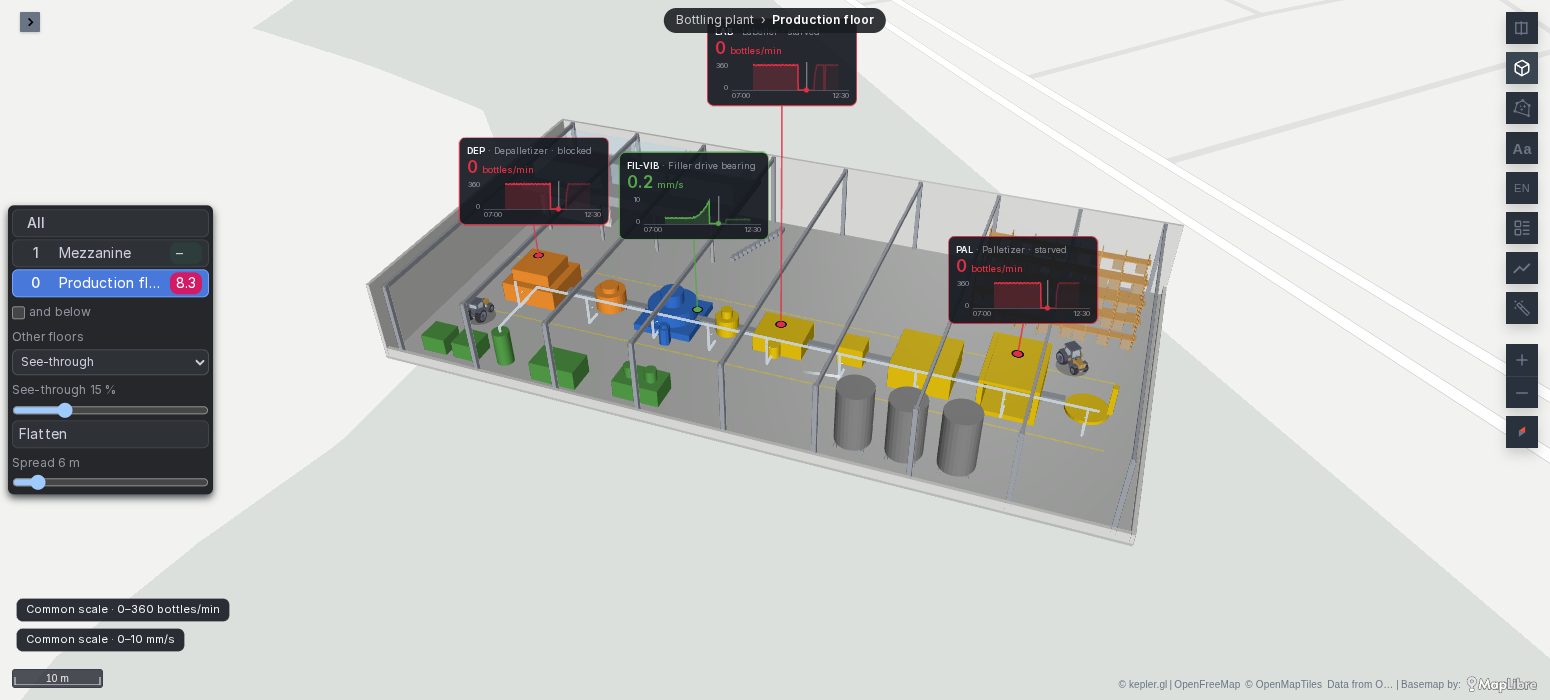
A 4D Model and Floors draw one building together: the model shows the building, and the floors pick what is shown in it. In the indoor tour's plant, each machine is a part of the model, coloured by its status; the sensors, forklifts and rooms are written in the model's own metres (Data in a model's frame), each row with its level. The floors were added in the Indoor tab (Production floor and Mezzanine), and their spread is the mezzanine's real height, 6 m, so the stacked floors match the model. Give the model an Opacity under 1 to see the floor picked through its roof.
When it does not draw
- No picker over the map. Floor picker is off, or the map is zoomed out past the indoor zoom (17 by default): zoom in, or lower Indoor from zoom in the settings.
- The picker lists nothing. No query has a column Floors recognises: set Floor column, or name the column
level. - Every floor lies on the ground. The spread is 0: press Stack, or set Spread between floors in the Indoor tab. A floor known only by name has no height: give your floors a number.
- A layer's points stay on the ground while their floor is up. Its altitude column is not
floor_z. - A query shows on every floor. It has no floor column: give it one, or set it to Only while one of these floors is picked in Queries.
- See-through shows nothing of the other floors. See-through needs a spread, and keeps only shapes: rooms, walls and plans, not points.
- Picking a floor in the dropdown does nothing. Floor variable is not the variable's name, or the variable's values are not the floors' numbers or names as the picker lists them.